Cost Allocation
Last updated: January 26, 2026
Cost allocation in Loop allows users to assign GL codes and cost centers to individual invoiced line items. These allocations determine how freight and parcel spend is categorized for accounting and reporting purposes.
Where can I view cost allocations?
From an individual payable invoice:
Cost allocations can be viewed from the Accounting tab on a payable invoice.
To view allocations:
Open a payable invoice
Navigate to the Accounting tab
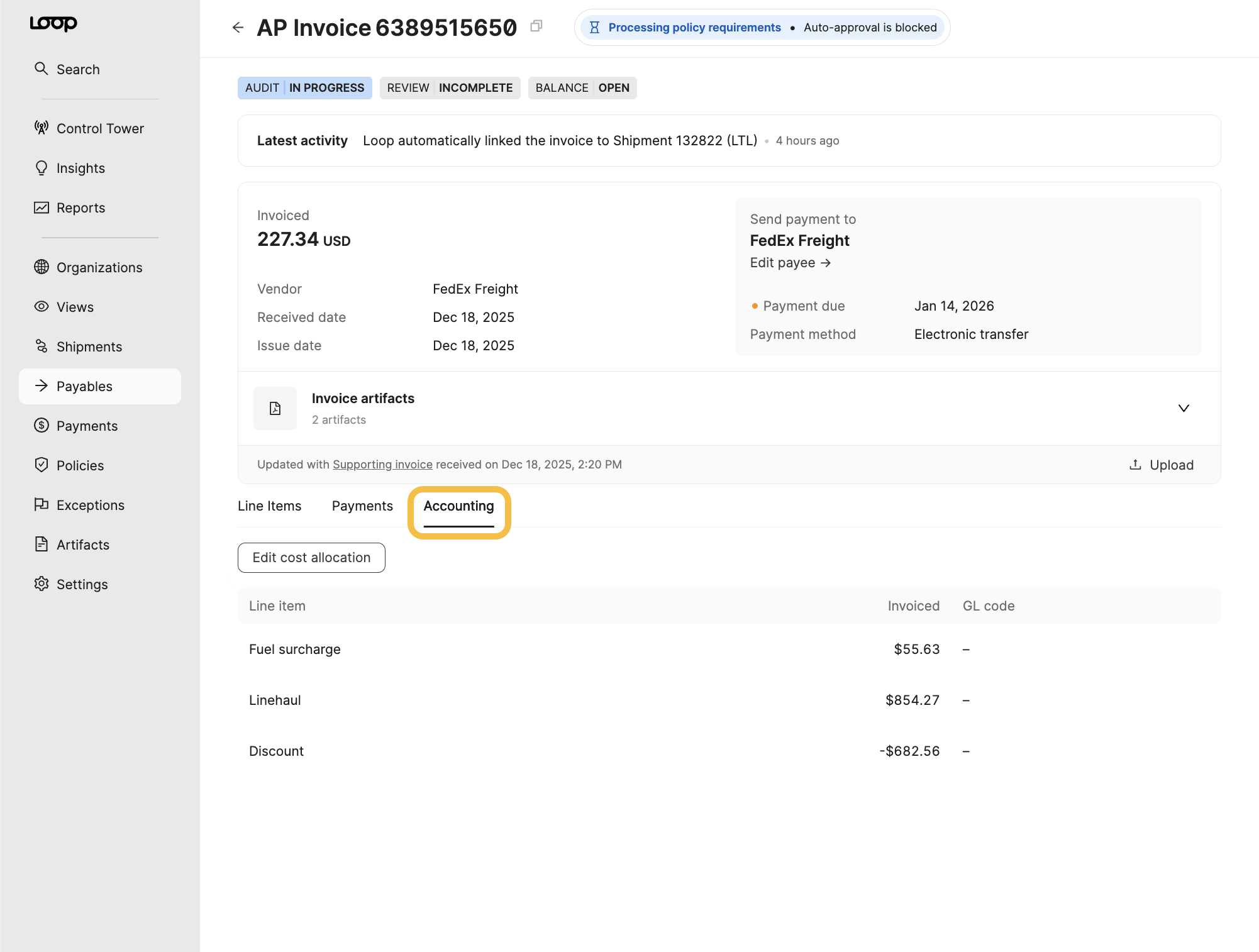
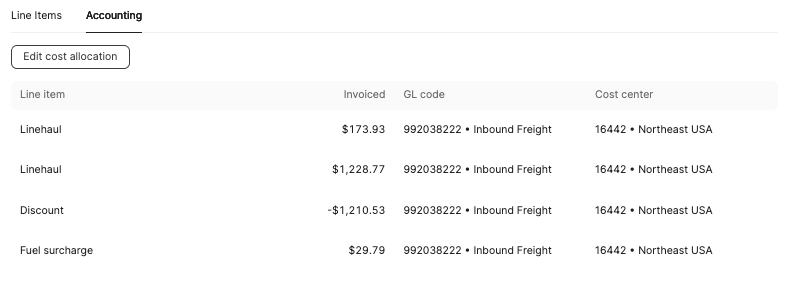
For each line item, Loop displays:
Charge description
Charge amount
Assigned GL code(s)
Assigned cost center(s), if enabled
Both freight and parcel invoices use the same Accounting view.
From the Payables table:
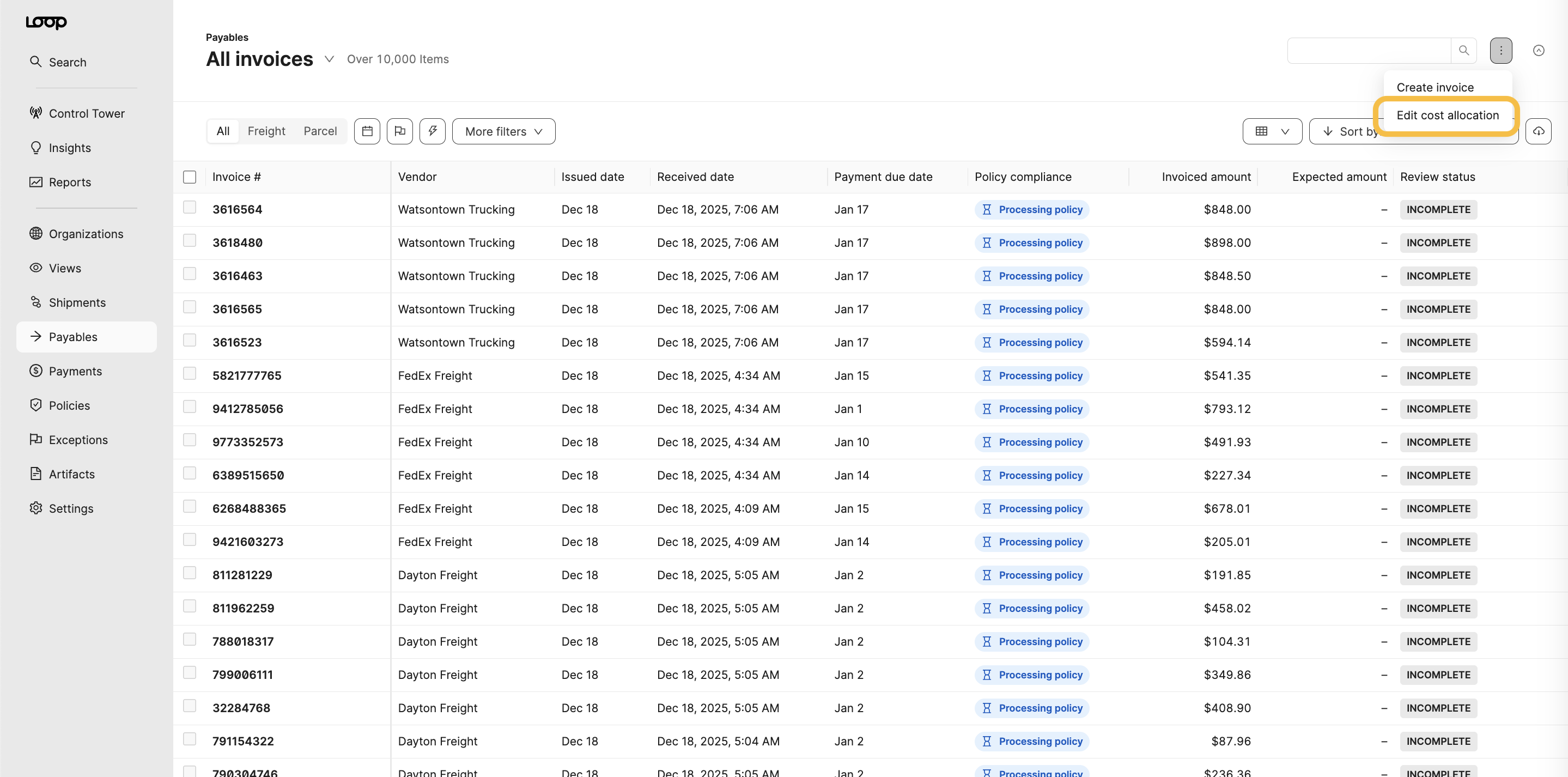
Yes. Cost allocation can also be accessed directly from the Payables table:
Navigate to the Payables Table
Click the three dots in the top right
Select
Edit Cost Allocation
How do I find invoices that need cost allocation?
Filters are available on the Edit Cost Allocation page to help locate line items, including:
Missing GL codes or cost centers
Vendor or payee organizations
Invoice issue, pickup, delivery, or payment due dates
Primary shipment number
For parcel, this is the tracking number
For freight, this is usually a PRO or BOL number. If you send us shipment records, this is your external identifier.
Payable review status
You can leverage Policies to help locate line items with missing or questionable allocations. Reach out to your customer success manager to find out more or read about it here: 📄 Policies - Exceptions
Can I assign both GL codes and cost centers?
If both cost code types are enabled for your account:
GL codes and cost centers can be assigned to the same line item
Each cost code type is managed separately
How do I edit cost allocations for an invoice?
If you access cost allocation from the payables table, you can edit directly from that page. From an individual invoice's accounting tab, select Edit Cost Allocation
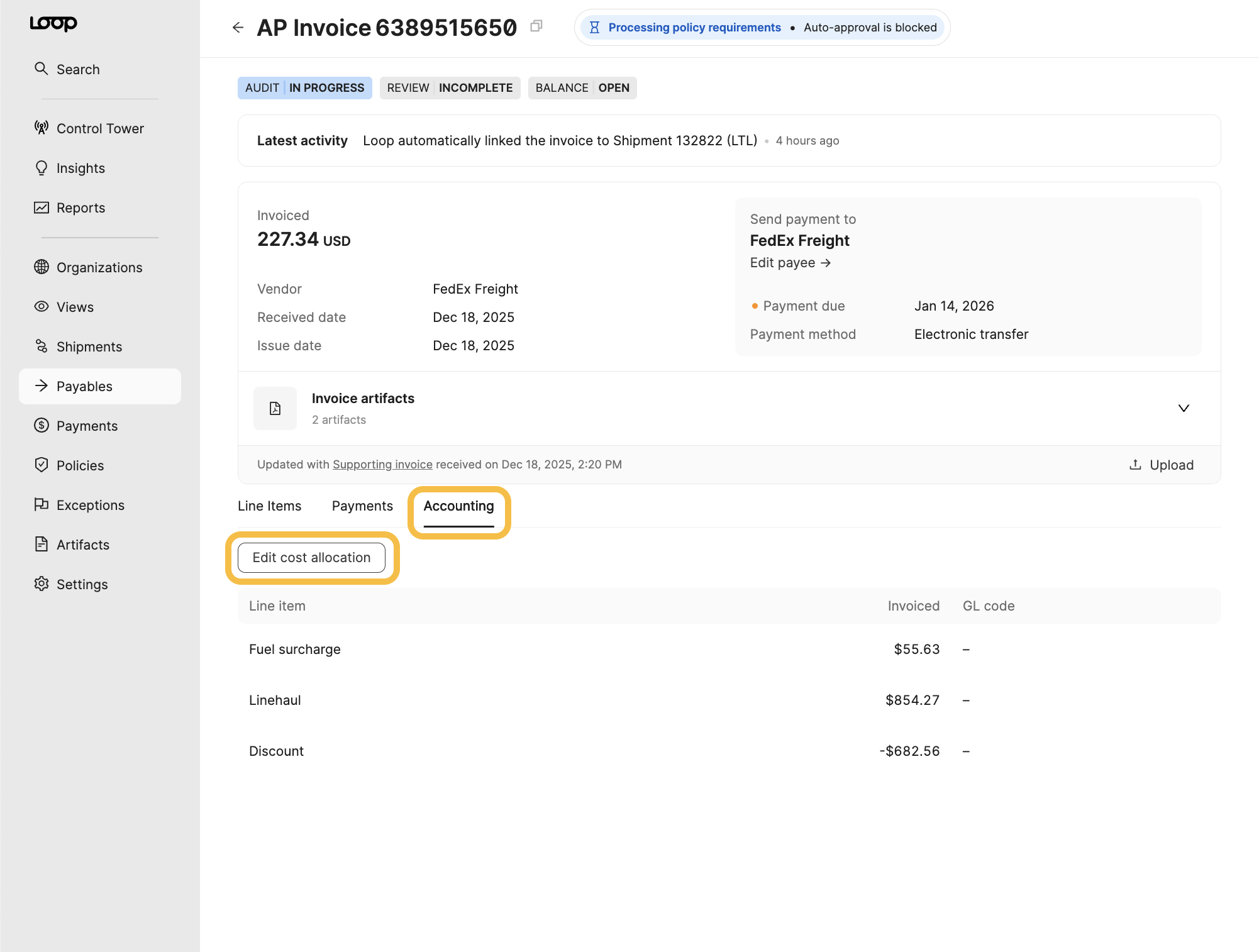
This opens the cost allocation editor, where allocations can be added or updated at the line-item level.
To assign a single code:
Locate the line item you want to update
Search by code or description
Select the desired GL code or cost center
The selected code will be applied to 100% of the line item amount.
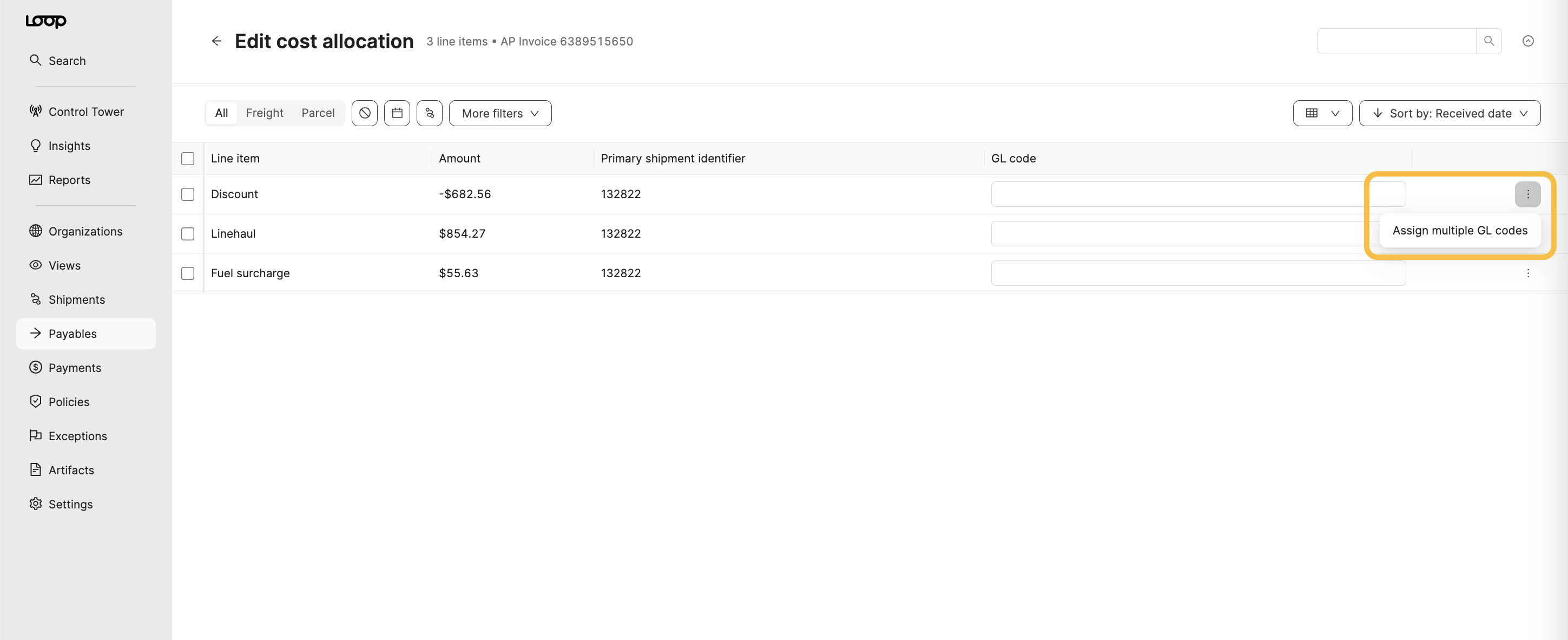
To split a line item across multiple codes:
Click on the three dots at the right end of the target line item
Choose
Assign multiple GL codesAdd the required cost codes
Enter allocation amounts or percentages
Save your changes
The total allocation must equal 100% of the line item amount.
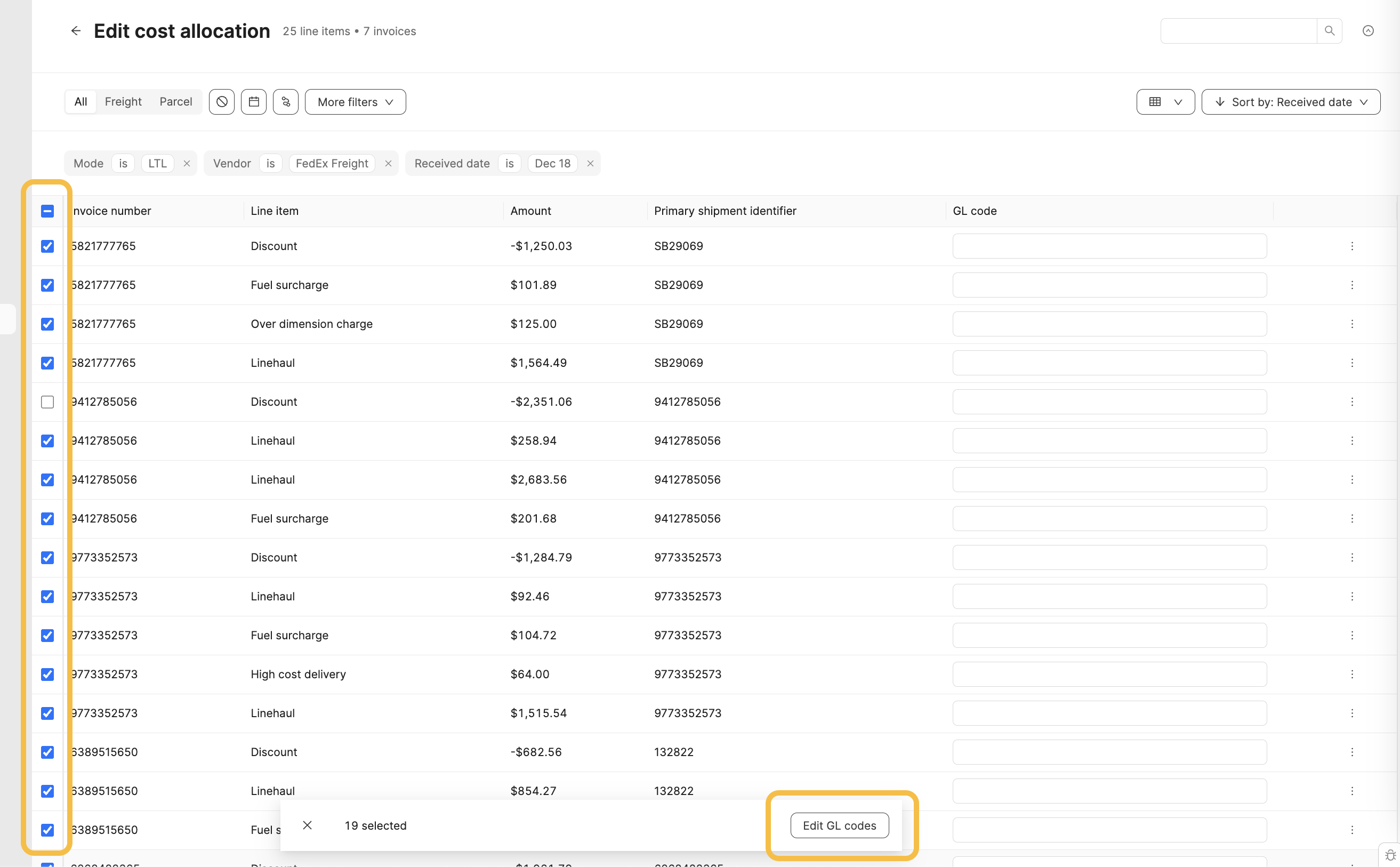
How do I update cost allocations in bulk?
From the edit cost allocations page, you can select any number of line items and click Edit GL codes to make changes.
What happens when I change an allocation?
Some allocations are applied automatically by Loop based on existing rules.
When a user updates a cost allocation:
The manual allocation overrides the automated result
The updated allocation remains in place unless manually changed again
Are there any limitations?
New GL codes and cost centers cannot be created directly in Loop
All line items must be allocated to 100%
Only users with admin or accountant roles can edit cost allocation