Exceptions
Last updated: September 4, 2025
Exceptions
Exceptions describe unexpected issues on shipments and invoices. Exceptions can be auto-applied (set up by Loop) or user-managed labels. What can you do with exceptions? There are four actions:
Add exception types to shipments and invoices
Resolve to indicate the issue is addressed
Remove to indicate the issue does not need to be addressed
Reopen a resolved exception to indicate what was previously thought to be resolved is still an outstanding issue
How to add an Exception
You can create an exception on a payable invoice with the three-dot button on the upper right-hand corner or the invoice card under the Shipment tabs
Select the Exception tag from a drop-down list
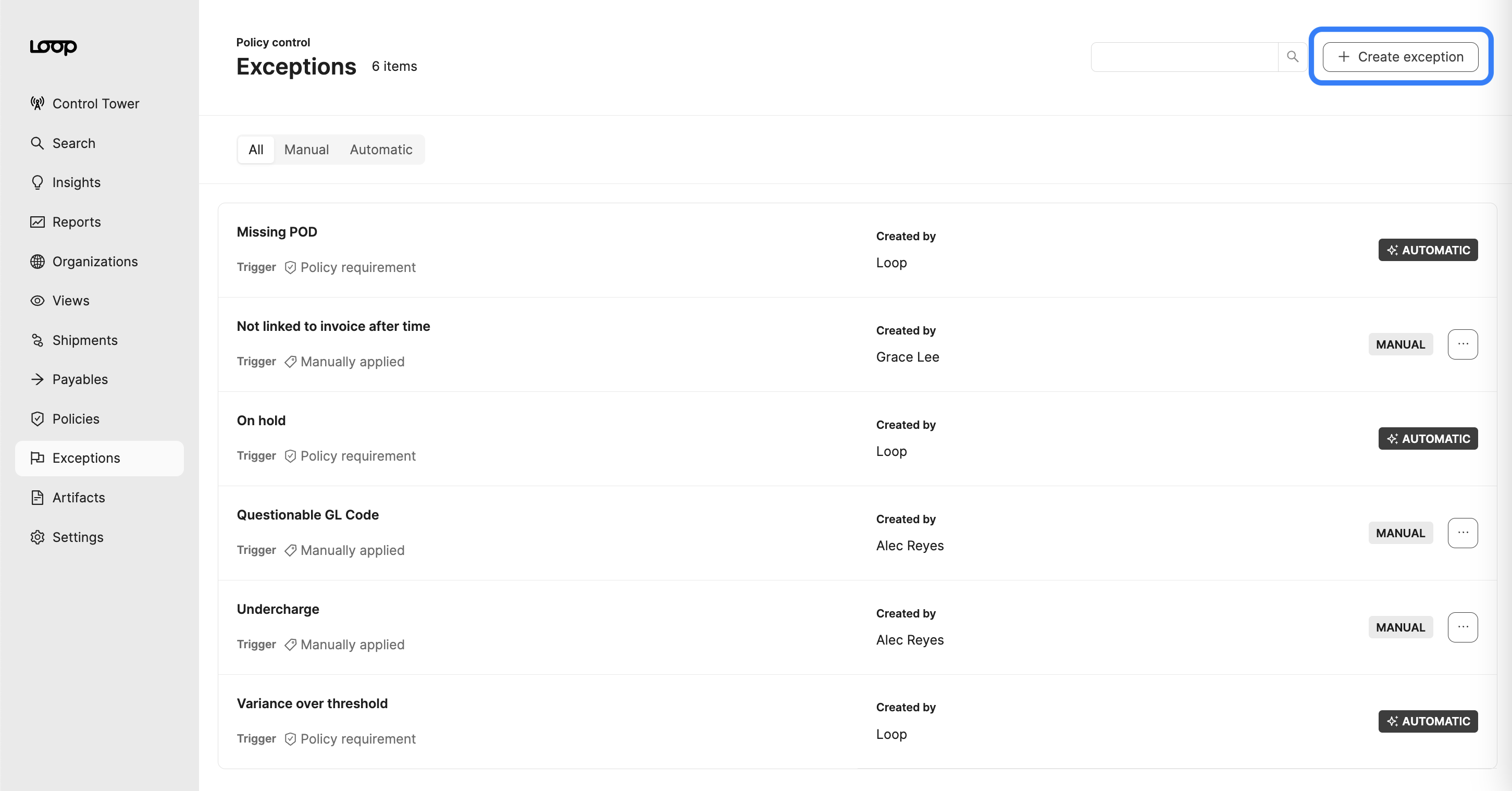
You can create a new exception in the Exceptions tab
Add a note to provide context to your team
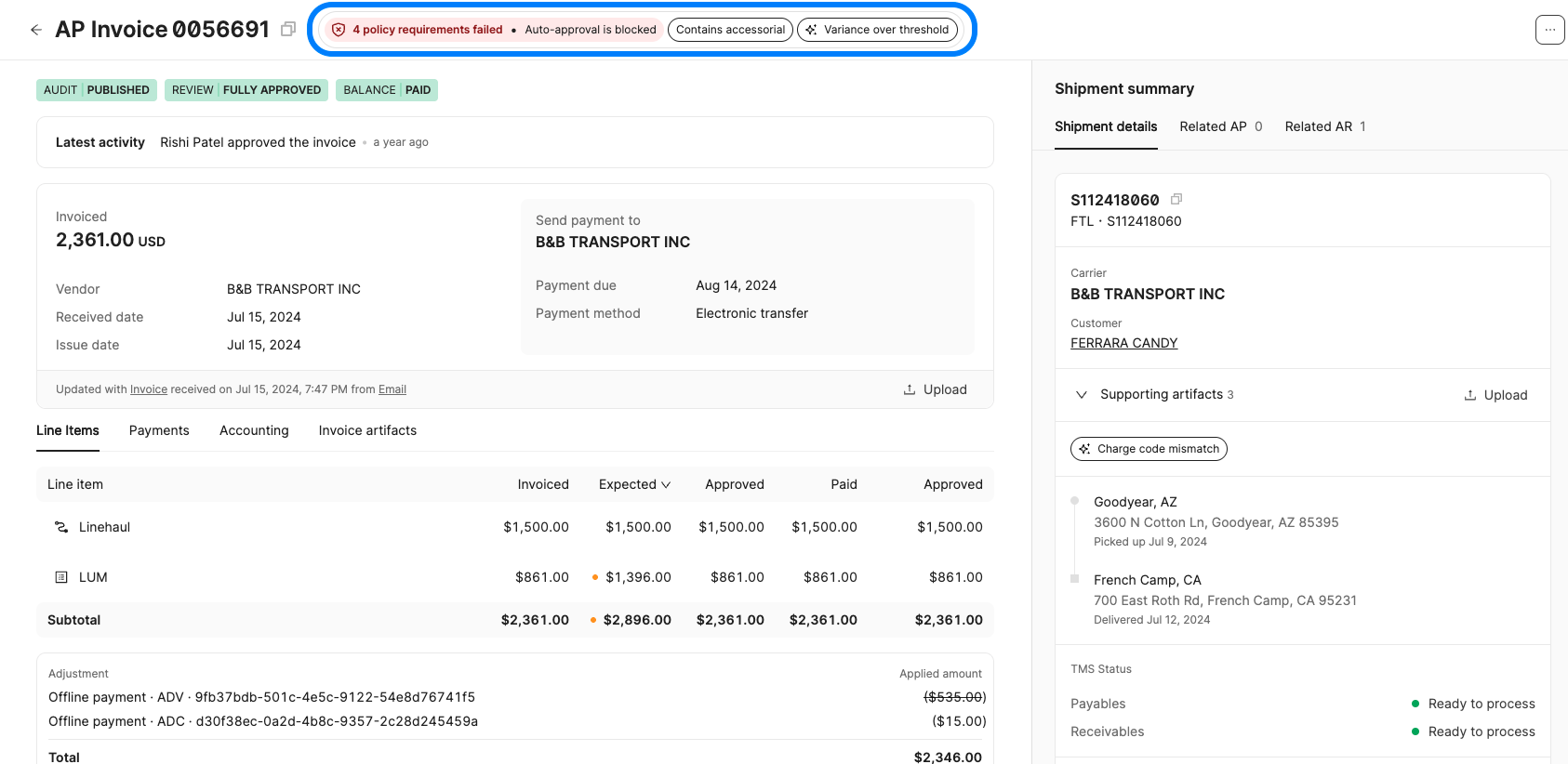
The exception will appear on the top of the invoice or shipment as a tag
How to edit an Exception
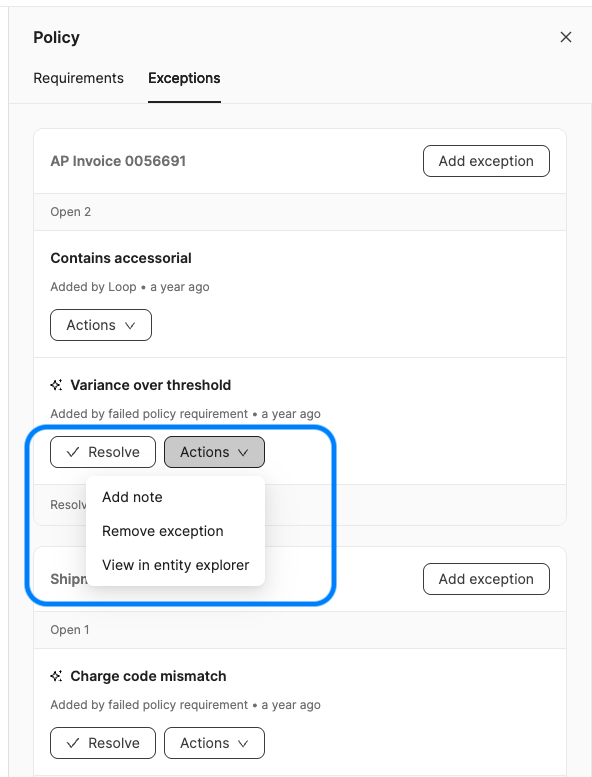
By clicking on the policies and exceptions indicator, a right-hand panel will appear for further functionality. Click into the exceptions tab to view any exceptions.
Resolve - select this button once the issue has been resolved
Once an exception has been resolved, click on the tag to reopen to indicate further work is needed
The actions button provides edit and removal ability
You can edit and delete the note or remove the exception altogether
Some auto-applied exceptions have limited actions available
How to Find an Exception
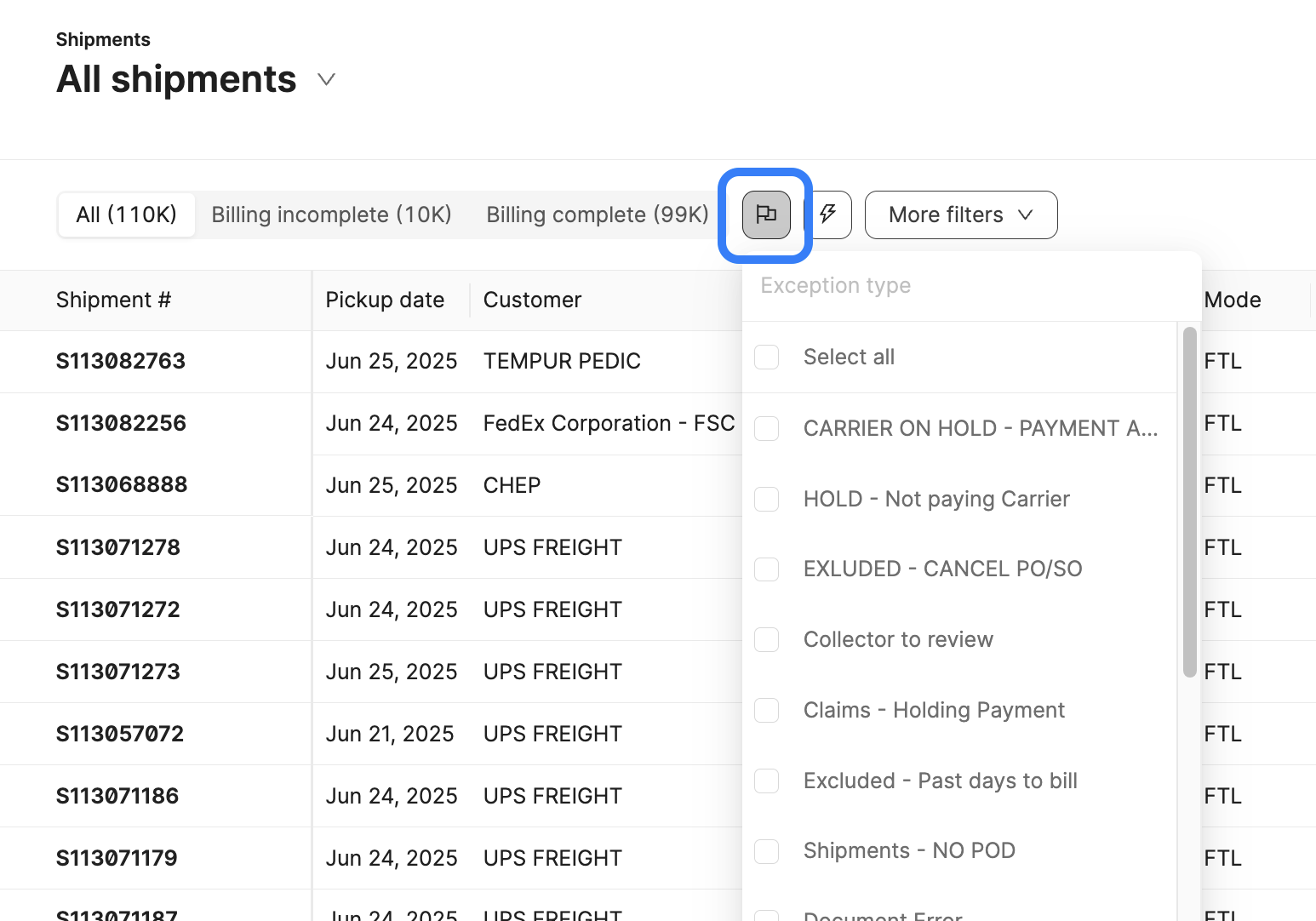
In the Shipment or Invoice tables, or in a custom view, use the quick filter to find specific exceptions.
How to Create an Exception
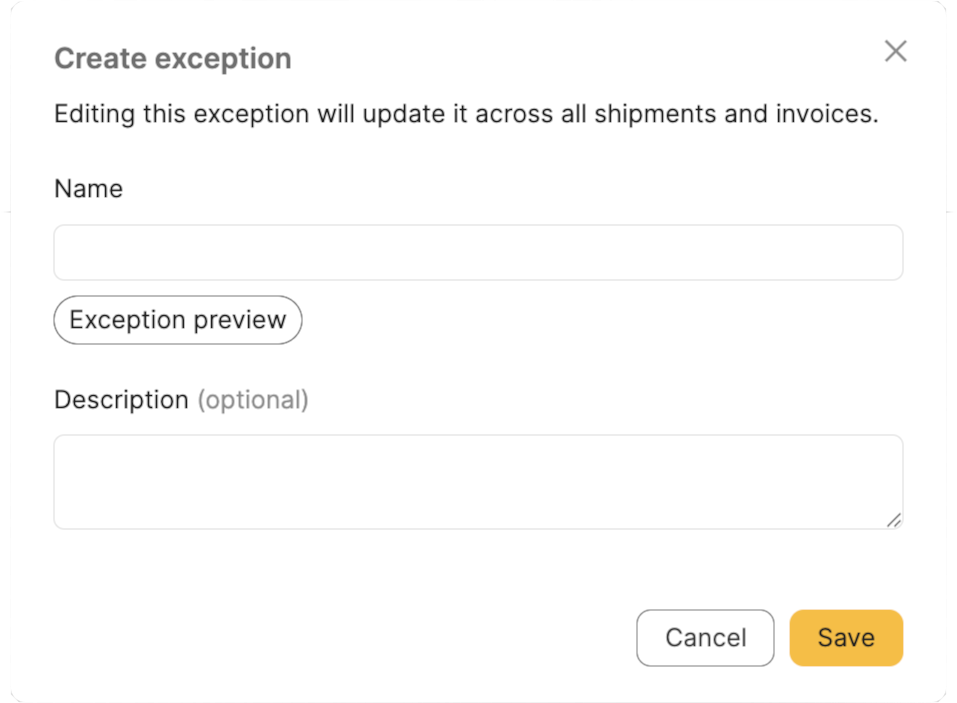
In the Exceptions tab, you can view all the created Exceptions and create a new one by clicking on the +Create exception button on the upper right-hand corner.
Provide the exception with a name, then click Create to save.