Policies - Exceptions
Last updated: June 12, 2025
What are exceptions?
Exceptions are structured tags that you can apply to any entity within Loop. These help identify and describe unexpected issues to help build workflows and drive analytics. Some exceptions are added by policies, some by other backend processes, and some are added manually. You can create new manual exception types at any time.
There are four standard actions you can take with exceptions:
Add exception types to shipments and invoices
Resolve to indicate the issue is addressed
Remove to indicate the issue does not need to be addressed
Reopen a resolved exception - to indicate what was previously thought as resolved still has an outstanding issue of some sort
If you'd like to edit a policy to add an exception, reach out to your customer success manager.
How do I add an Exception?
You can create an exception on a payable invoice with the three-dot button on the upper right-hand corner or the invoice card under the Shipment tabs
You can create a new exception in the settings tab under “Exception types”
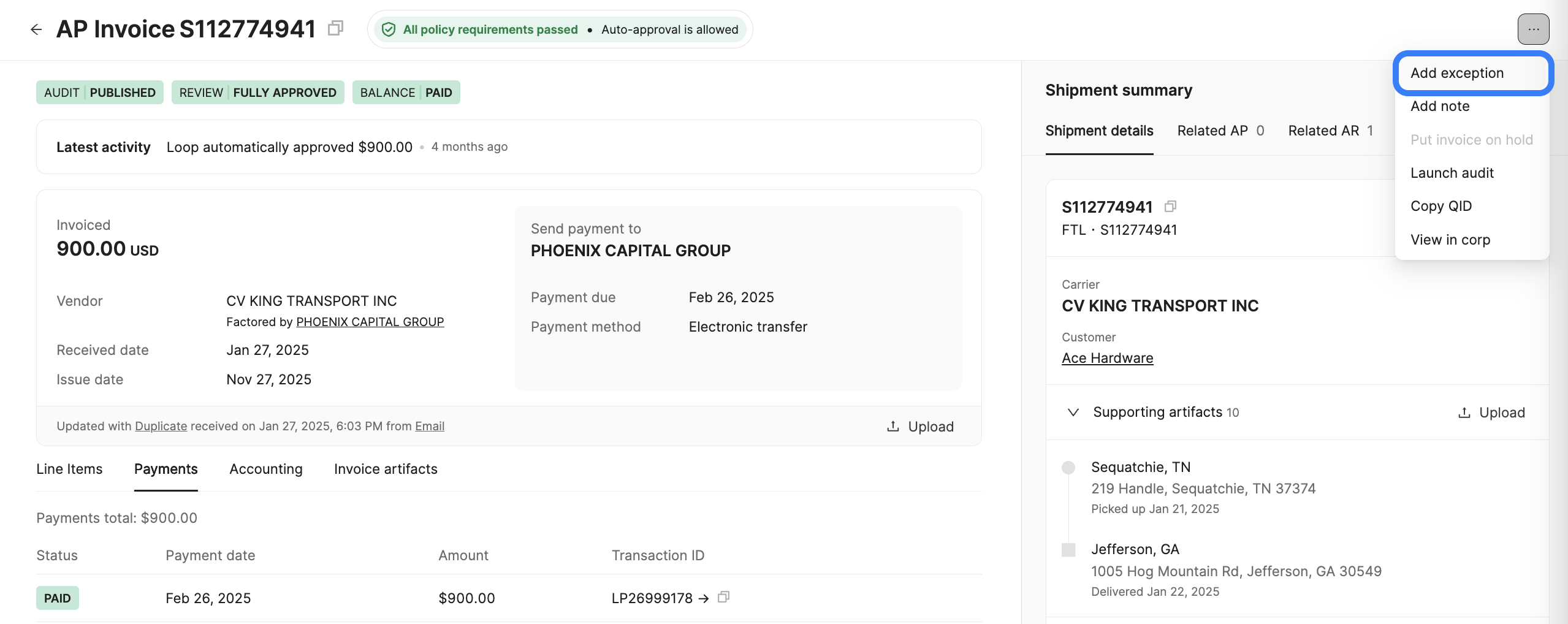
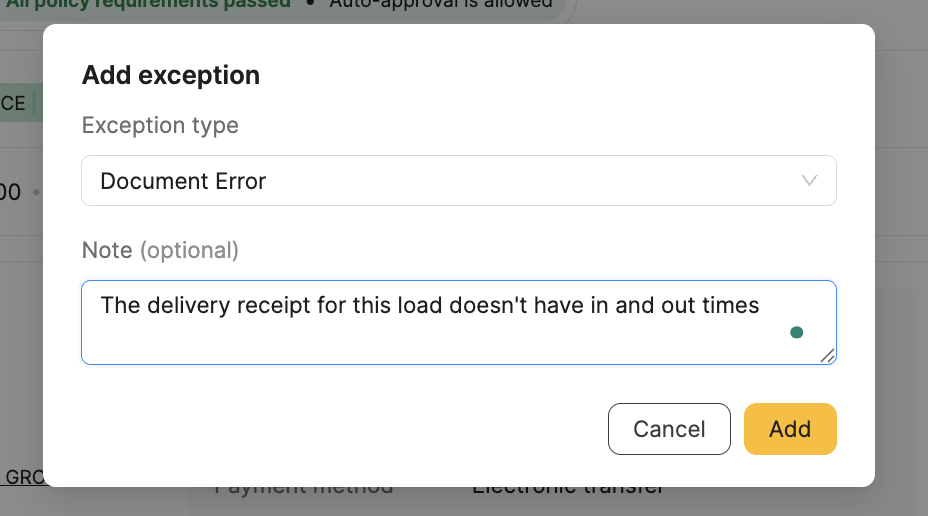
Select the Exception tag from a drop-down list and add a note to give more context to your team.
The exception will appear on the top of the invoice or shipment next to the policy evaluation results.

How do I edit an exception?
Once you've added an exception to your shipment or invoice, you can take a few distinct actions:
Add a note to give your team more context into the specific issue.
Resolve the exception to indicate the issue has been addressed.
Reopen a resolved exception - to indicate what was previously thought as resolved still has an outstanding issue of some sort
Remove the exception to indicate the issue does not need to be addressed.
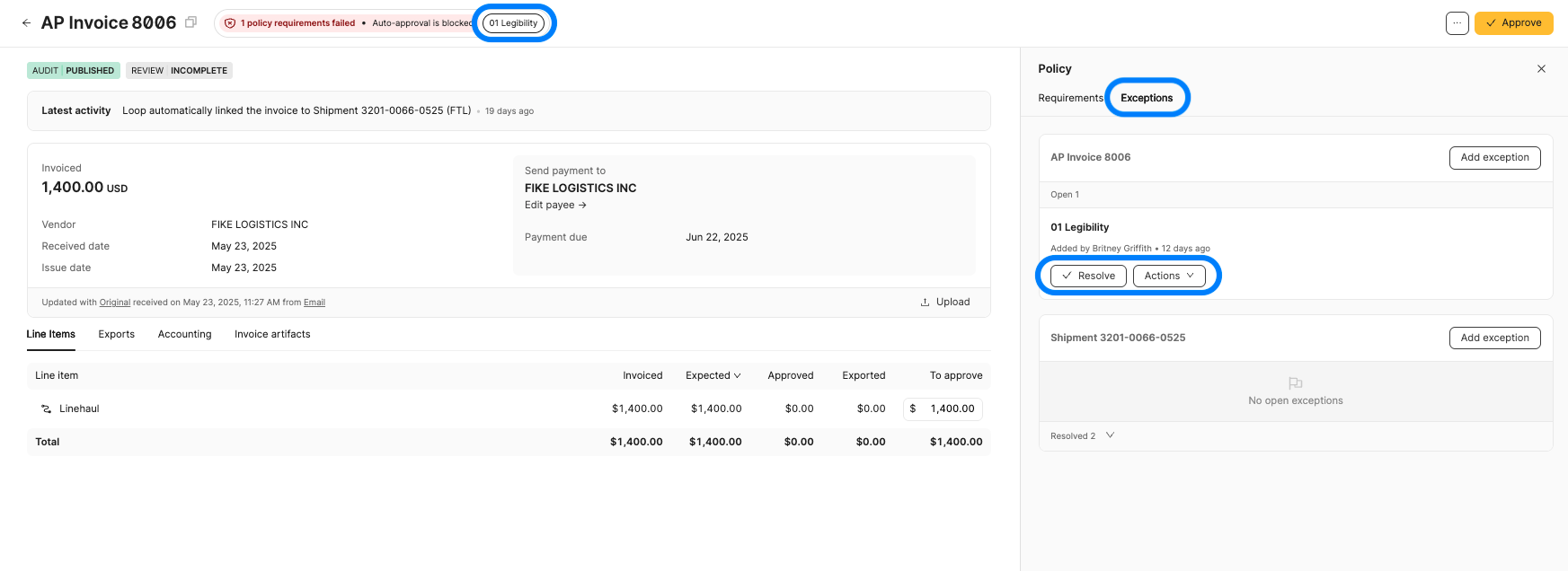
To edit exceptions, click on the exception tag or policy compliance indicator and then click on the Exceptions tab in the side panel. Available actions will show up beneath any applied exceptions.
How will exceptions work with policies?
The business rules that drive your automations will be housed within policy requirements. These requirements can block auto-approval of AP invoices or finalization of AR invoices, and they can also create exceptions.
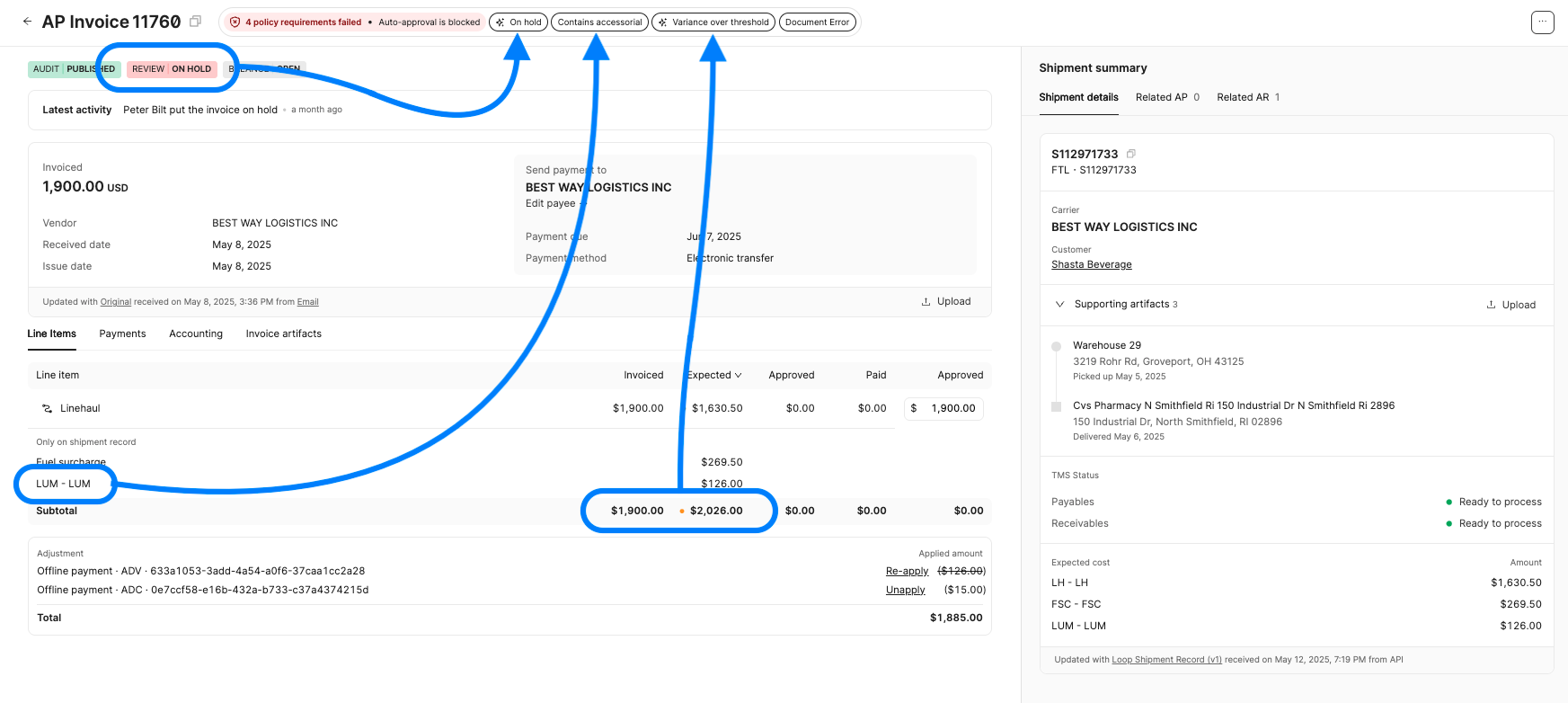
Any exceptions labeled with a sparkle icon ✨ have been applied via Policies.
Example
In this example, this payable invoice has been placed on hold, creating the ✨ On hold exception; because of the presence of a lumper charge, the Contains accessorial exception has been automatically added; and because of the discrepancy between expected and invoiced, the ✨ Variance over threshold exception has also been added. The Document Error exception was added manually.