Shipments
Last updated: May 6, 2025
Shipments Table
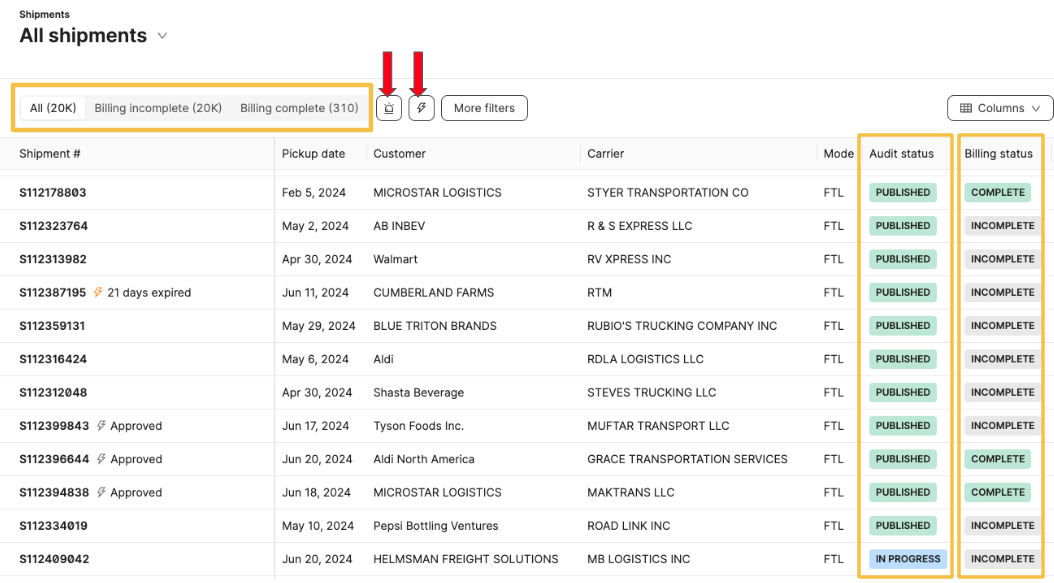
On the main table, you can view the shipment's number, customer, carrier, mode, and attached payable invoices, and receivable invoices. Use the filter and column buttons to sort through the table for more granular information The main table also displays:
The top banner shows the billing status: "All", "Billing Incomplete", and "Billing Complete"
The buzz and lightning buttons that filter on exceptions and QuickPay status
Audit and Billing statuses:
Billing Status
Billing Incomplete: Shipment contains any payable invoice that has not been reviewed; this will either need to be manually approved or will be auto-approved once extraction/audit is completed.EX: Variance outside of the set amount
Billing Complete: Shipment contains payable invoices that are all reviewed. Extraction and audit have been completed / no action is needed from the user
Audit Status
In Progress: Audit is still moving through the extraction/audit processPublished: Extraction and audit have been completed
Shipment Job
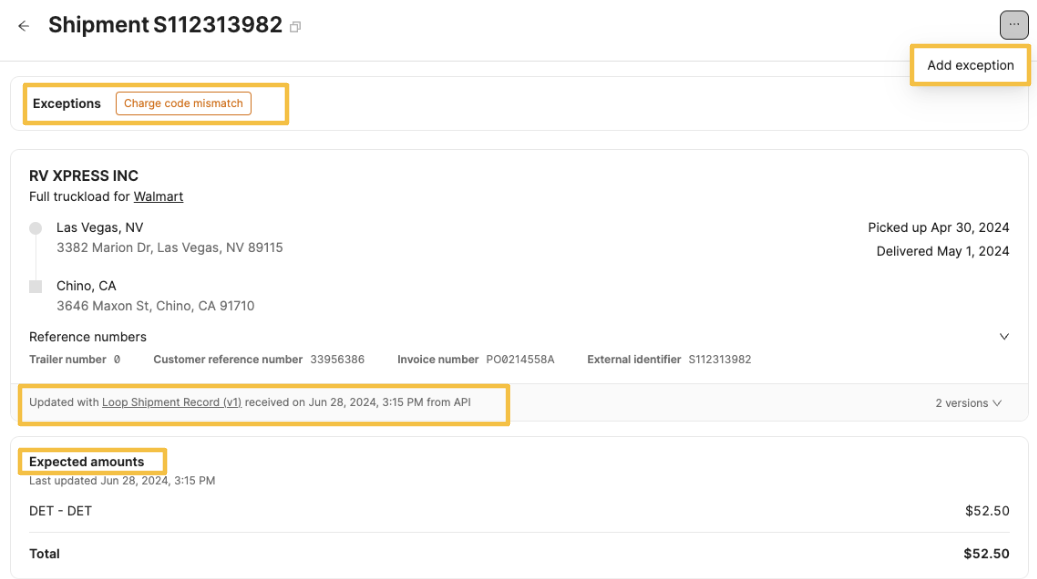
By clicking on a shipment's hyperlink, you can view the shipment's details. The large shipment number is copiable. The three-dot button at the top right corner allows you to add an exception. Any exceptions associated with the shipment will appear on the top banner.
Next, are the shipment details such as the customer, carrier, route, pick-up & delivery date, and reference numbers. The artifact that updated the shipment details is linked right below the card.
The "Expected amounts" section displays the expected line items and total for the shipment. Only shipments created from shipment records will have this section displayed, and the most recent record that updated the charges will be linked below the card.
Note: The artifact and timestamp linked below each section on the shipment page represent the artifact that last updated that particular section.
For example: Loop receives a new shipment record with an added detention charge, but no stop details, commodity amounts, or reference numbers change. The new shipment record will be linked under the expected amounts, but the original will still be linked under the shipment details.
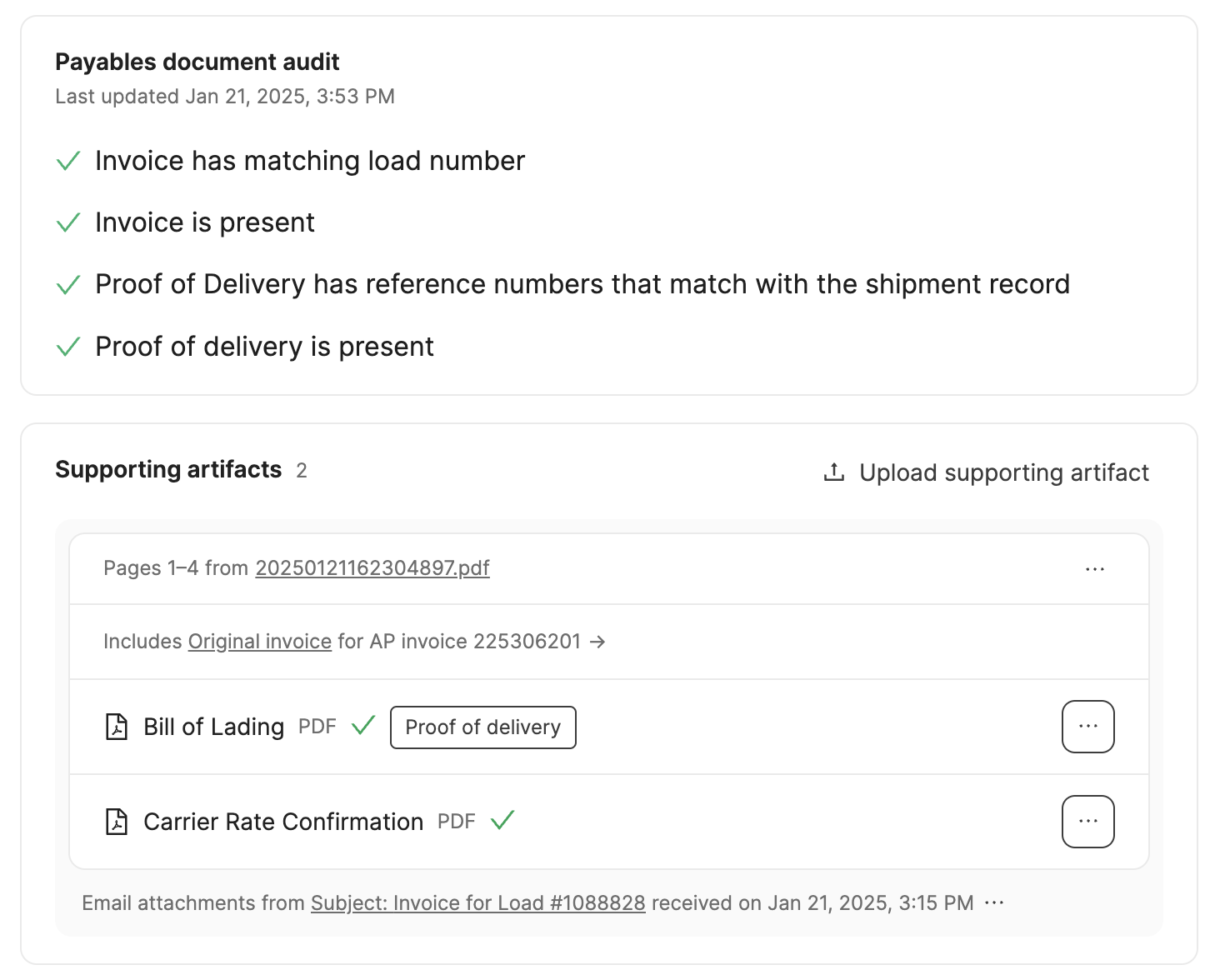
The payables document audit section displays the documents needed to complete Loop's audit check. This check can be personalized to your organization's needs. Examples:
An invoice is present
A proof of delivery is present
The load number on the shipment record is present on the invoice
The Supporting Artifacts are grouped by a packet and bundles and are linked to the source that is related to the shipment.
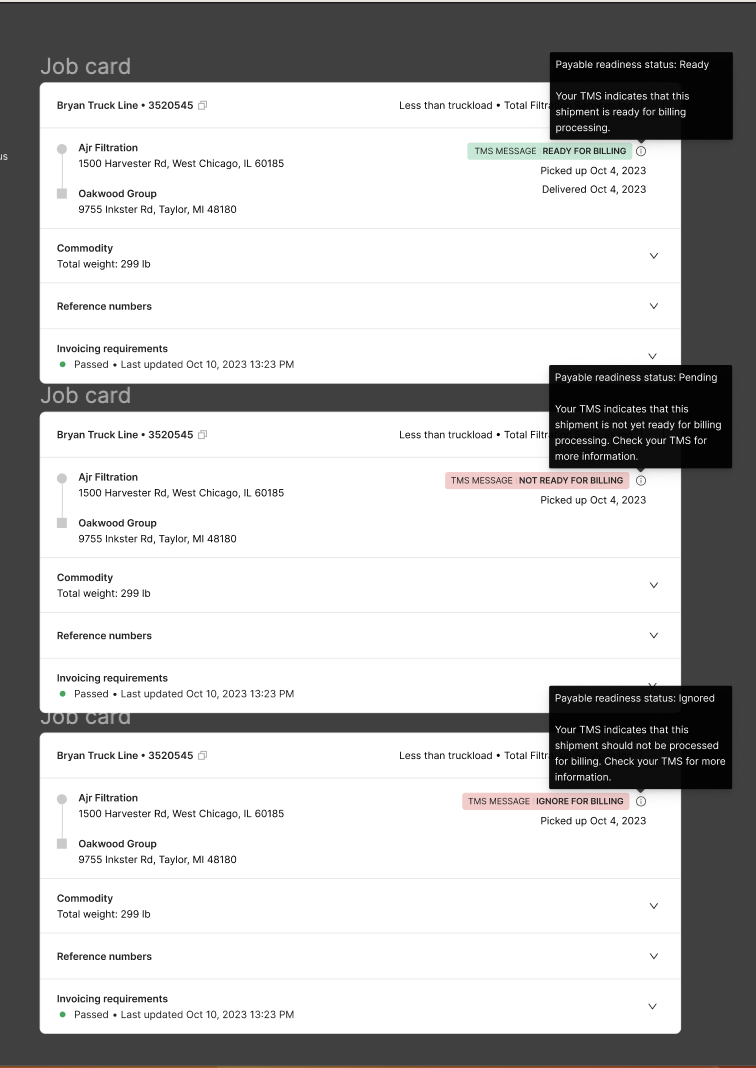
Payable Readiness Status
Hover over the message to learn more about the statuses
PENDINGindicates that the audit is not publishable. Waiting for validation of the shipment in the TMS or confirmation that the carrier should be paid.READYindicates that the audit is publishable. Users can proceed with approving payment amounts on the carrier's payable invoice.IGNOREindicates that any payable associated with the shipment job should not be paid. Users can archive or ignore the associated carrier payable invoice if there happens to be one.
Invoice Cards
On the right side of the page, are the invoice cards. If your account uses Loop Receivables, you'll see associated AP and AR invoices. If not, you will only see AP invoices.
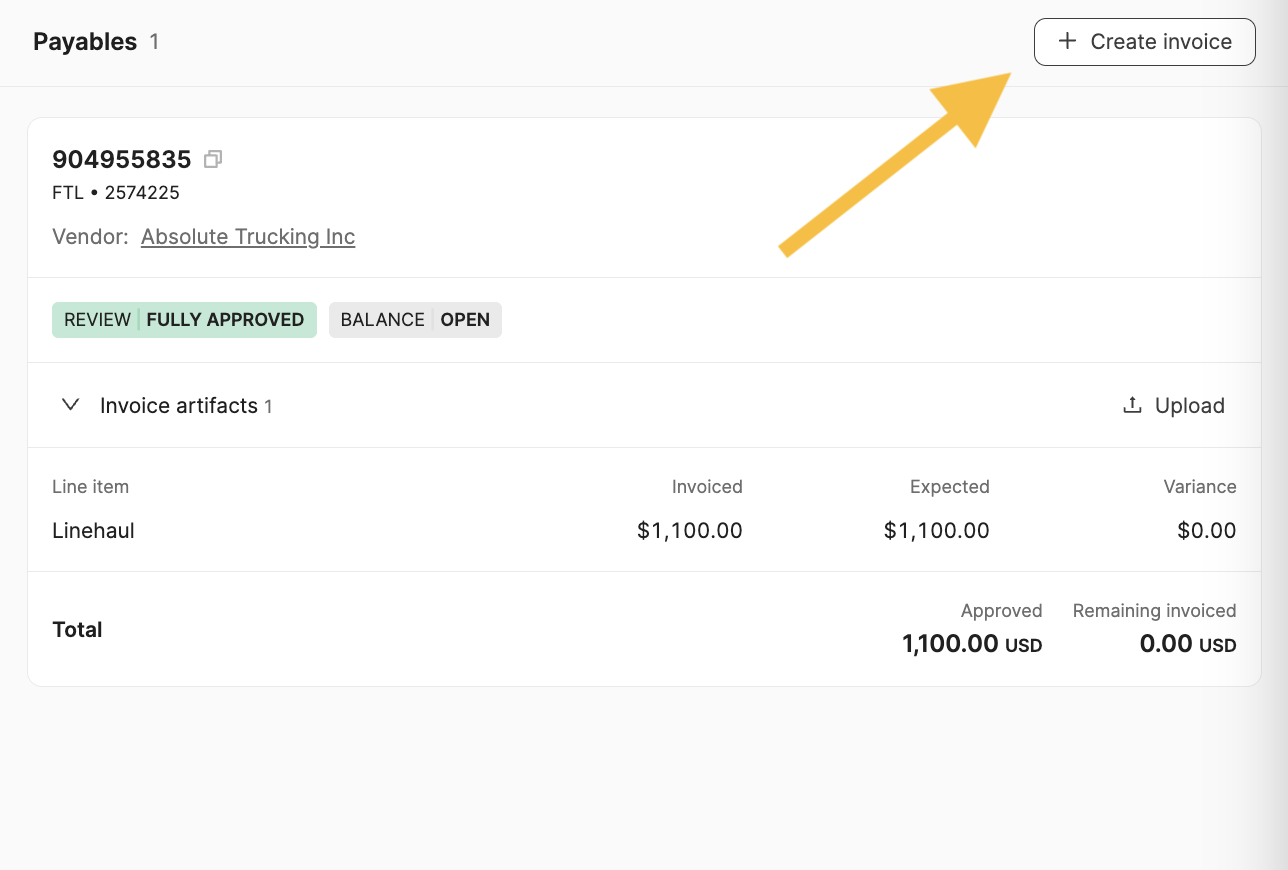
Creating a New Invoice
If you need to manually create an invoice or upload a packet, you can do so by clicking + Create Invoice in the Payables or Receivables section. For more information on uploading and creating invoices, visit 📄 How to Upload Artifacts.
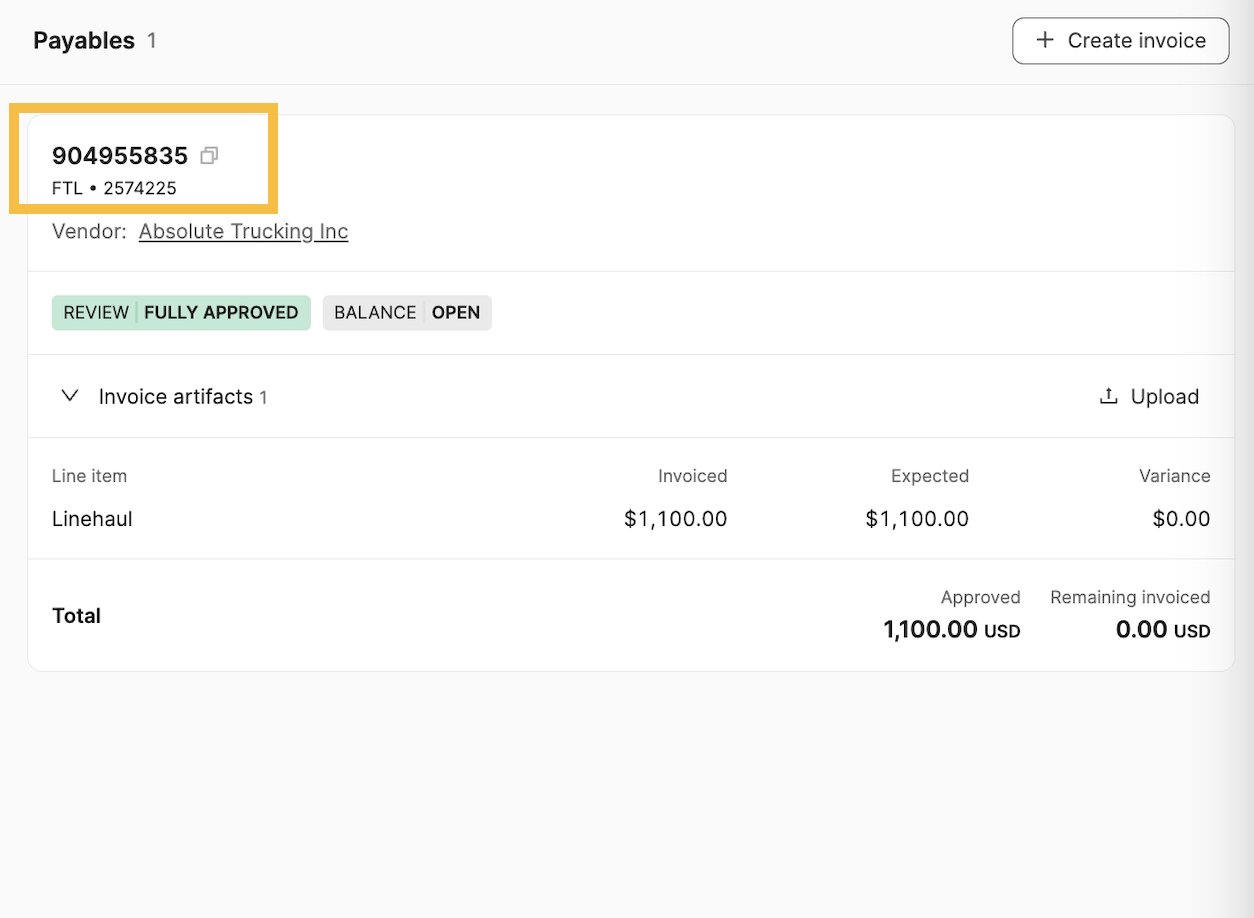
Navigating to the Invoice Page
When you click on the AP or AR Invoice Number -> you will be directed to the Payables or Receivables page for that invoice.
Artifact Viewer
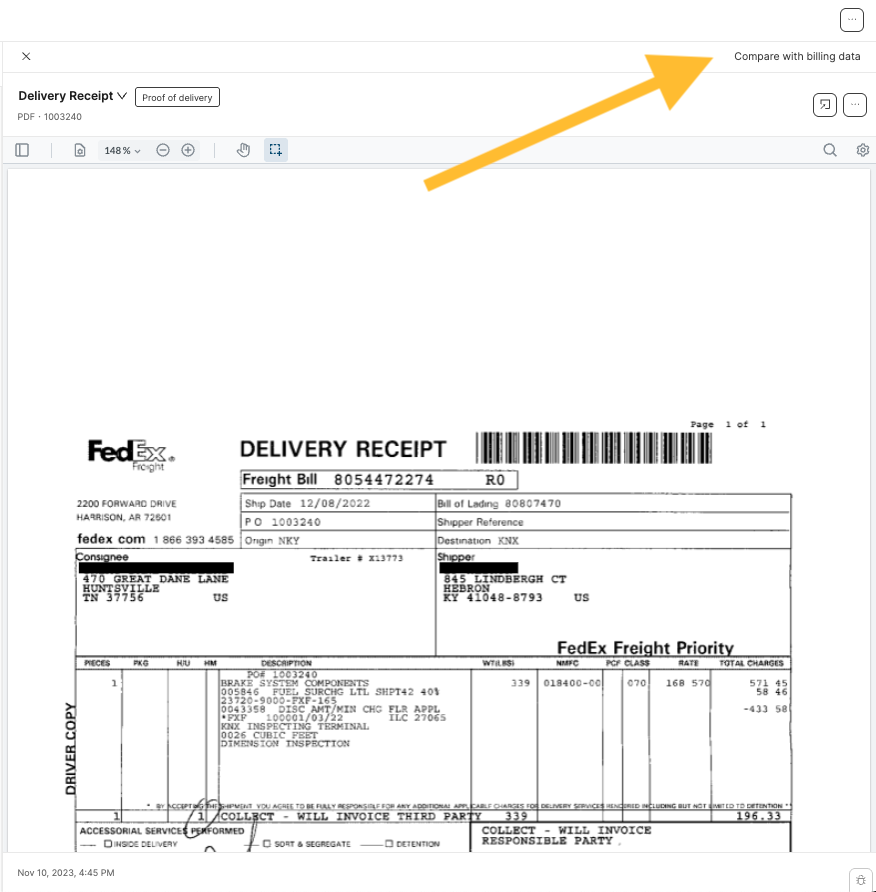
You can open artifacts from the shipment, payable invoice, or receivable invoice, and the viewer will open side-by-side with the details of the shipment or invoice, allowing for in-depth data matching and comparison.
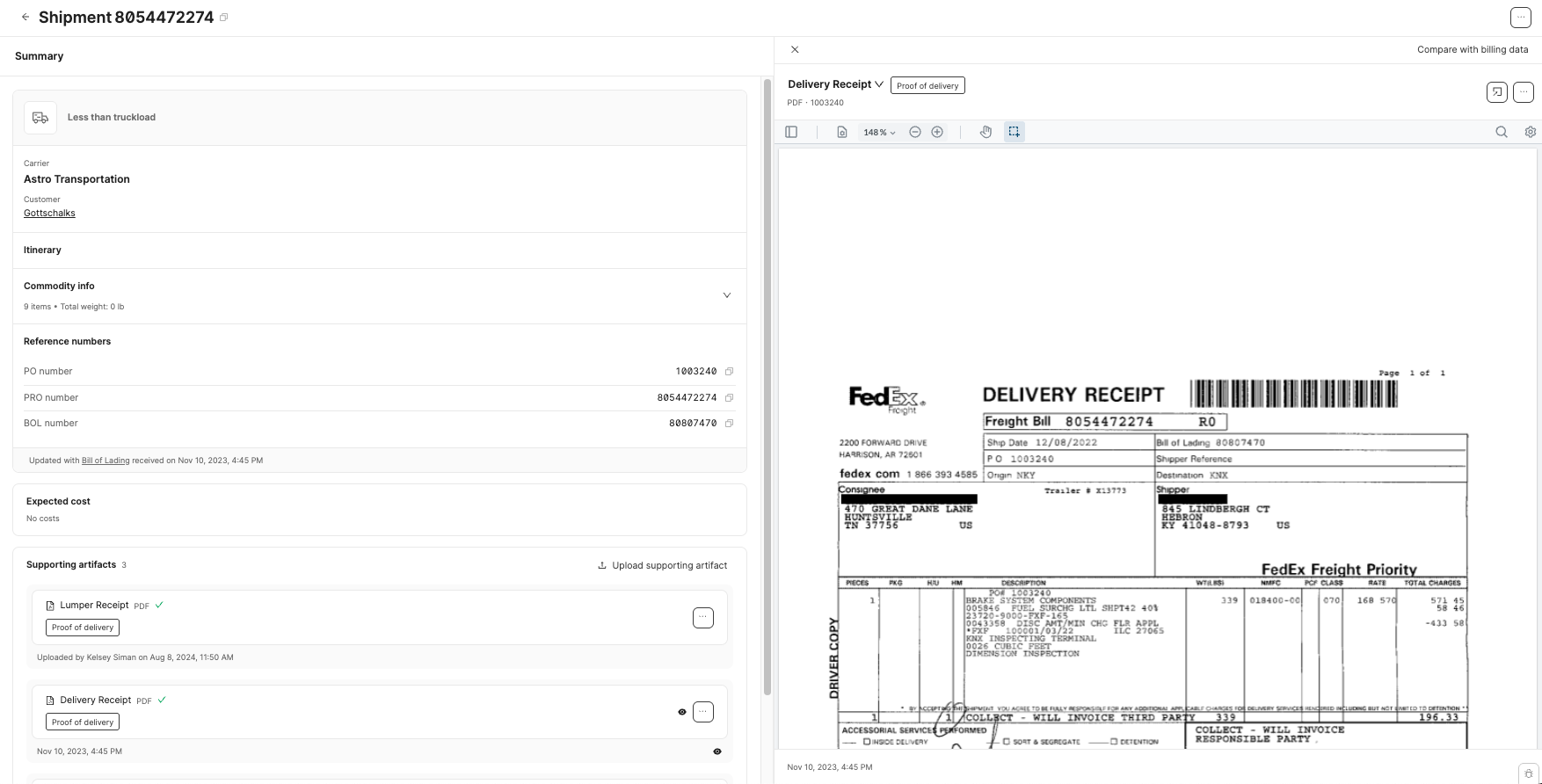
Clicking the Compare with billing data or Compare with shipment data button in the corner of the artifact viewer will change the information displayed next to the artifact.