Payments FAQ
Last updated: October 23, 2026
Loop audits your freight and parcel invoices, routes them to you for review as needed, and then pays your carriers. How the money reaches the carrier depends on your payment model. This article explains each model, shows what you will see in Loop, and answers the questions clients ask most.
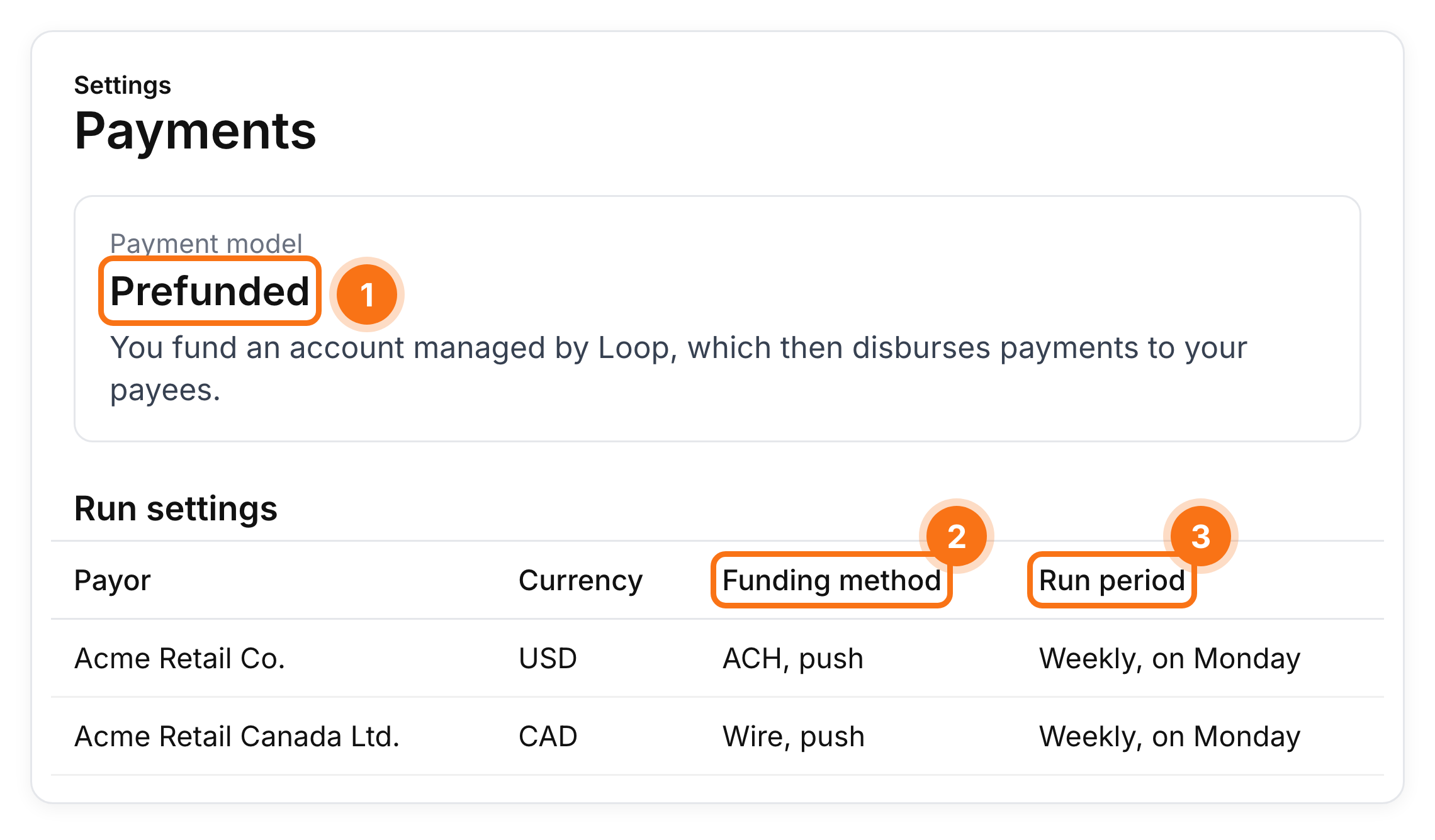
Which payment model am I on? Open Settings → Payments. The Payment model card shows Prefunded (custodial), Direct disbursement or Offline, and Run settings lists your payor, currency, funding method and run schedule.
Your sidebar is a quick tell, too: Payment Runs (or Offline Runs) means custodial or offline; Payments means direct disbursement.
How Loop pays your carriers
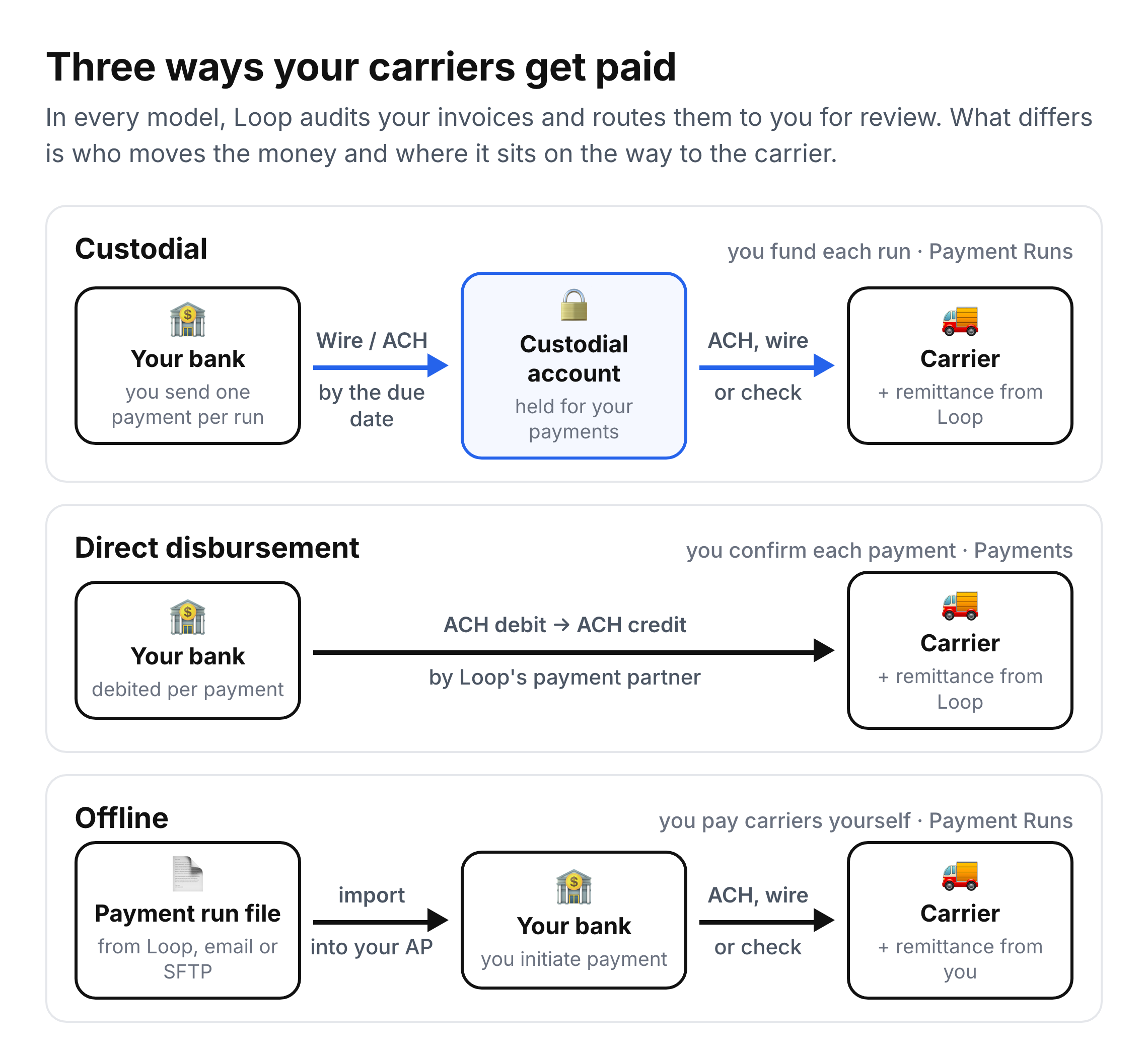
Custodial | Direct disbursement | Offline | |
|---|---|---|---|
Also called | Prefunded (the label in Settings → Payments) | Loop-directed payments | Client-managed, pay file |
Who holds the money before the carrier is paid | A custodial account, separate from Loop's operating accounts | You, until each payment is debited | You |
Who pays the carrier | Loop, from the custodial account | Loop's payment partner, from your account | You, from your AP system or bank |
What you do | Pay each funding request in full by its Funding Due Date | Confirm each payment date | Pay carriers from each payment run file |
Currencies | USD, CAD, EUR, GBP, MXN (one run per currency) | USD to US bank accounts | Any, through your own bank |
Where you track it in Loop | Payment Runs | Payables → Payments | Payment Runs or Offline Runs |
Who tells the carrier what was paid | Loop emails a remittance | Loop emails a remittance | You, unless Loop is set up to send FedEx remittance |
Note: you can use more than one model within Loop. For example, one carrier can be paid on a custodial run while the rest are paid offline. Your Loop team can set this up with you, upon request.
Custodial payments
With custodial payments (shown as Prefunded in Settings), Loop groups your review-complete invoices into a payment run, usually weekly: every invoice whose review you completed since the last run, whether you approved it (in full or in part) or rejected it. Rejected invoices are listed at $0, so the run records every decision, but only approved amounts are funded and paid. When the run closes, Loop emails you a funding request. You send one payment for the run total to the custodial account, and Loop applies your funds and pays each carrier from it. Unless you have set up pull funding with Loop, nothing is debited from your account.
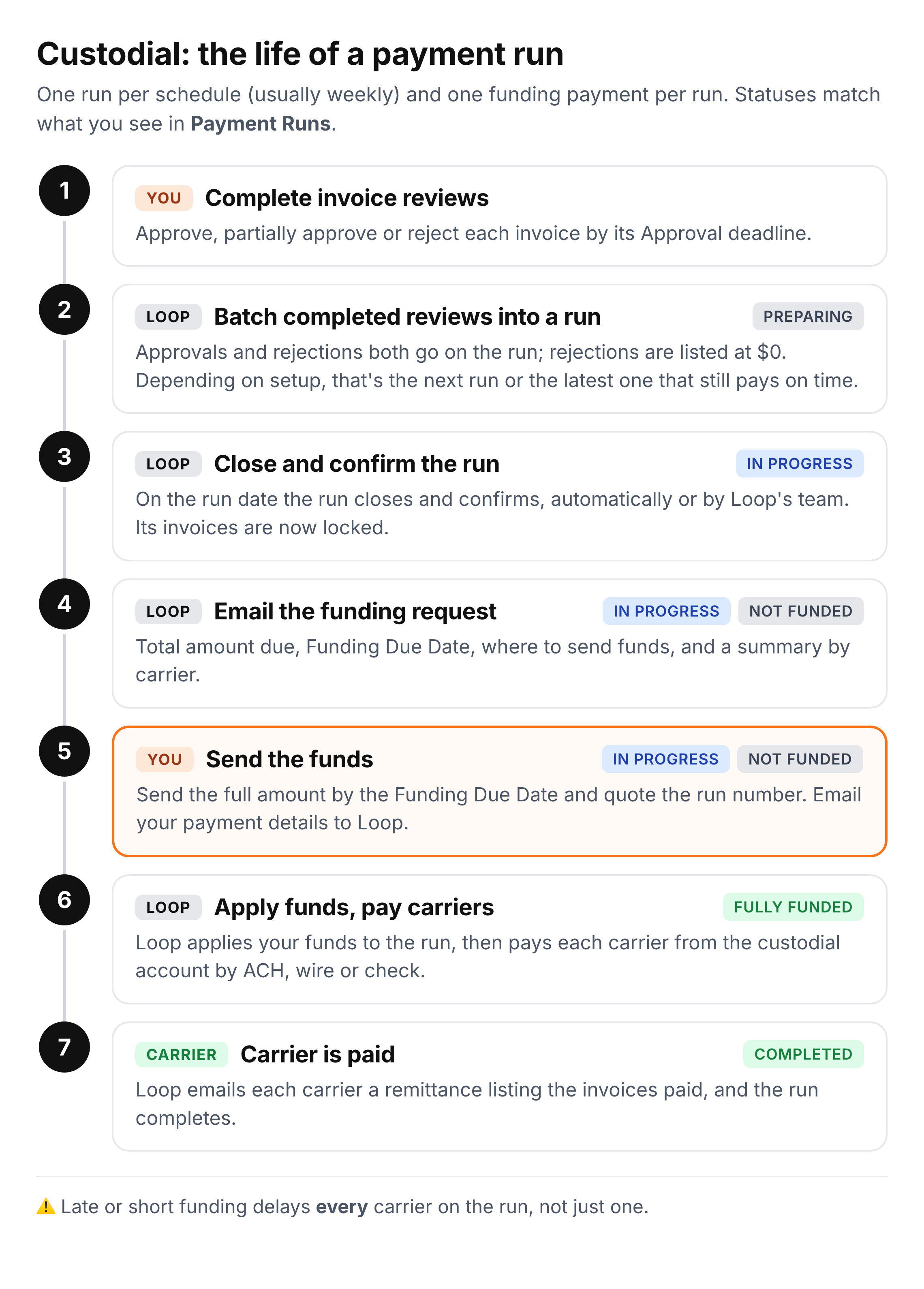
You don't confirm custodial runs in Loop. A run confirms automatically on its run date, or Loop's team confirms it if additional review is required. Your part is completing invoice reviews by their Approval deadline and paying the funding request.
A run waiting for your funds
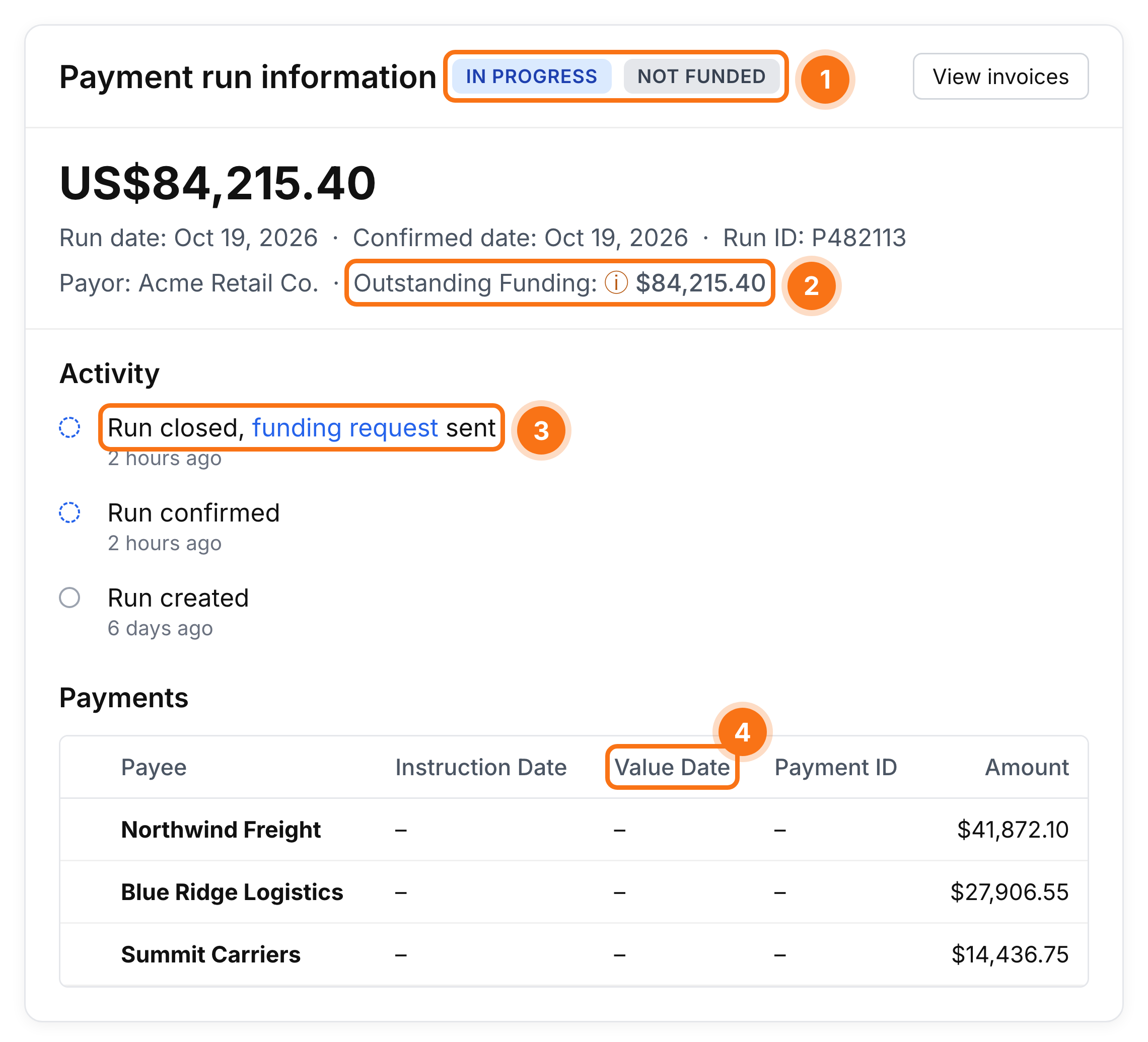
Run status and funding status. In progress means the run is confirmed and its invoices are locked. Not funded means your deposit hasn't been applied yet.
Outstanding Funding is the amount still to be applied to this run.
Run closed, funding request sent. Select funding request to open the same document Loop emailed you.
Value Date fills in for each carrier once the payment is scheduled. It is the date the carrier should receive the funds.
A completed run
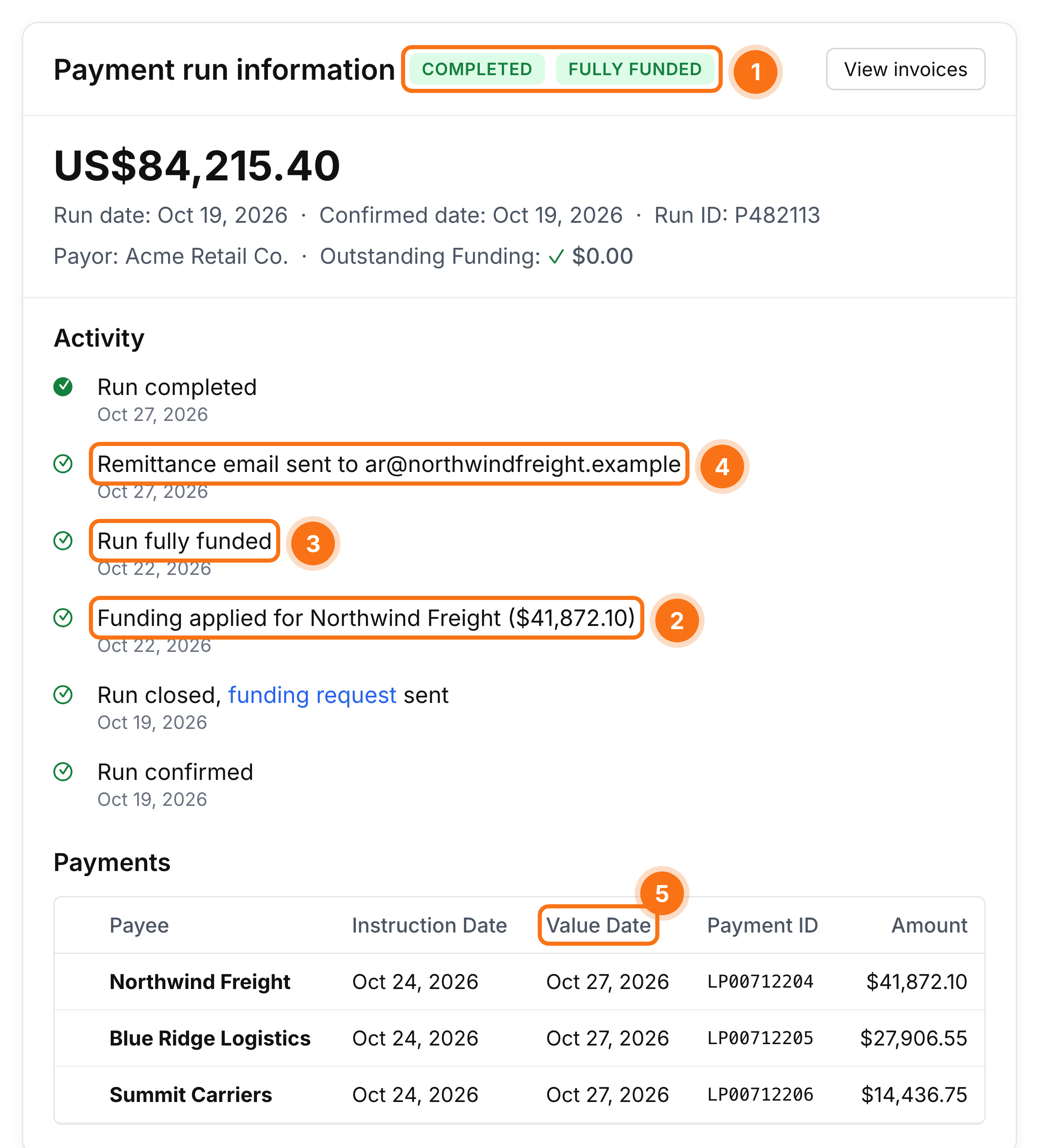
Completed and Fully funded: every payment in the run has finished processing.
Funding applied for [carrier]: your funds were applied to that carrier's payment.
Run fully funded: the full run amount was applied.
Remittance email sent: Loop told the carrier which invoices were paid.
Value Date and Payment ID (starts with LP): when the carrier was paid and the reference to give the carrier if they ask.
Run and funding statuses
Status | What it means |
|---|---|
Preparing | The run is still being assembled. Invoices can still be added or moved, and nothing has been sent. |
In progress | The run is confirmed and payments are being executed. Invoices can no longer change. |
Completed | All payments in the run have finished processing. |
Voided | The run was voided and no payments were sent. |
Not funded | Awaiting your deposit into the custodial account. |
Partially funded | Some funding has been applied; an amount is still outstanding. |
Fully funded | The full run amount has been applied. |
What's in a funding request
Payment Run #, Payment Run Date and Funding Due Date
Total Amount Due, in the run's currency
Remittance Instructions: where to send the funds, when you push them to the custodial account
GL Code Summary and Payee Summary; some clients also get an invoice-level detail file
The funding request is the payable document for the run. If your AP system needs an invoice before it will pay, use the funding request, due by its Funding Due Date.
Send the exact Total Amount Due by the Funding Due Date, and quote the run number. Then email your payment details (amount, date, run number) to custodial-remittance@loop.com so the funds are matched quickly.
A run is only paid out once it is fully funded, so late or short funding delays every carrier on the run, not just one. If you need to hold an invoice, tell Loop before the run closes.
Direct disbursement payments
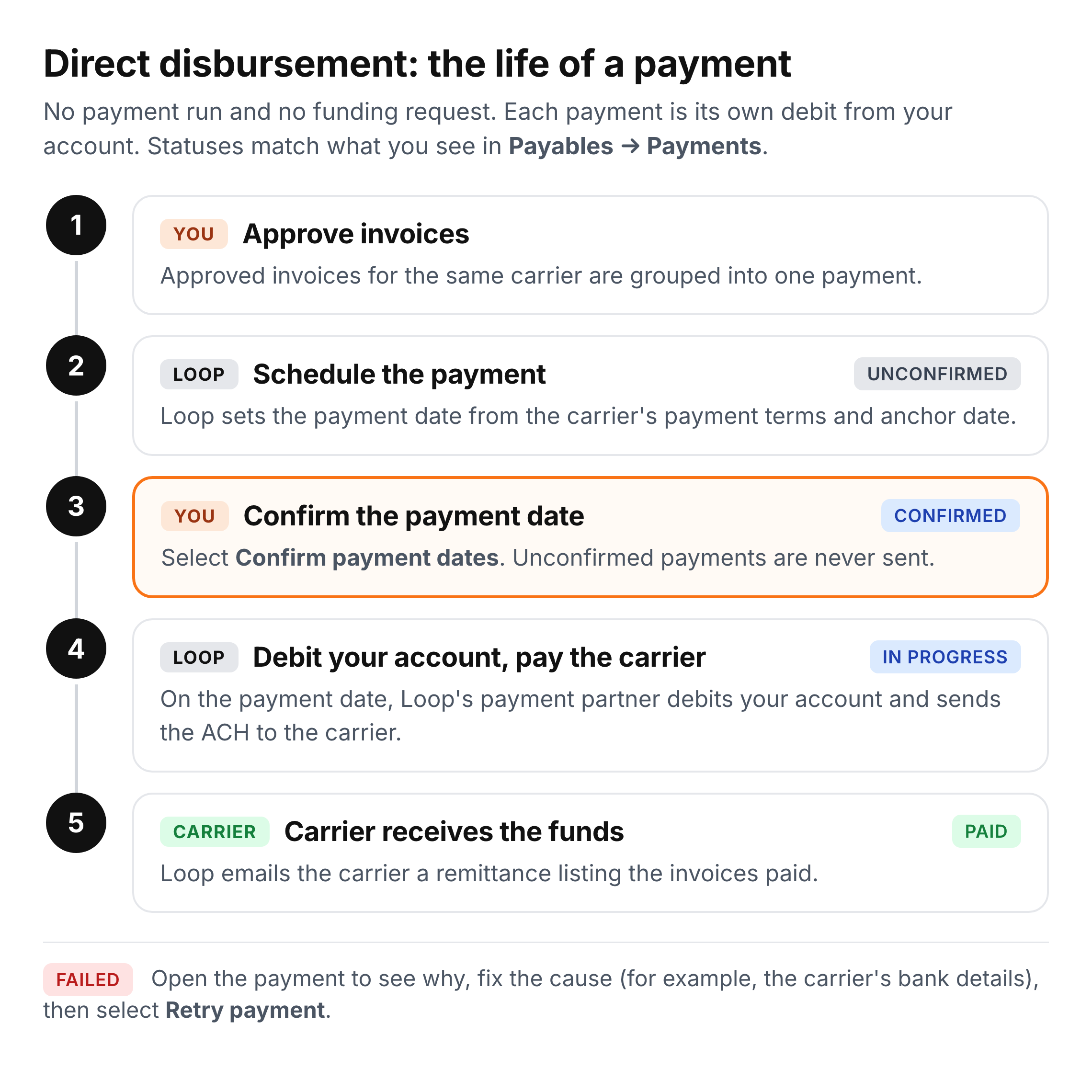
With direct disbursement (also called Loop-directed payments), there is no payment run and no funding request. Loop schedules a payment for each carrier from its payment terms. You confirm the date, and on that date Loop's payment partner debits your bank account and pays the carrier by ACH.
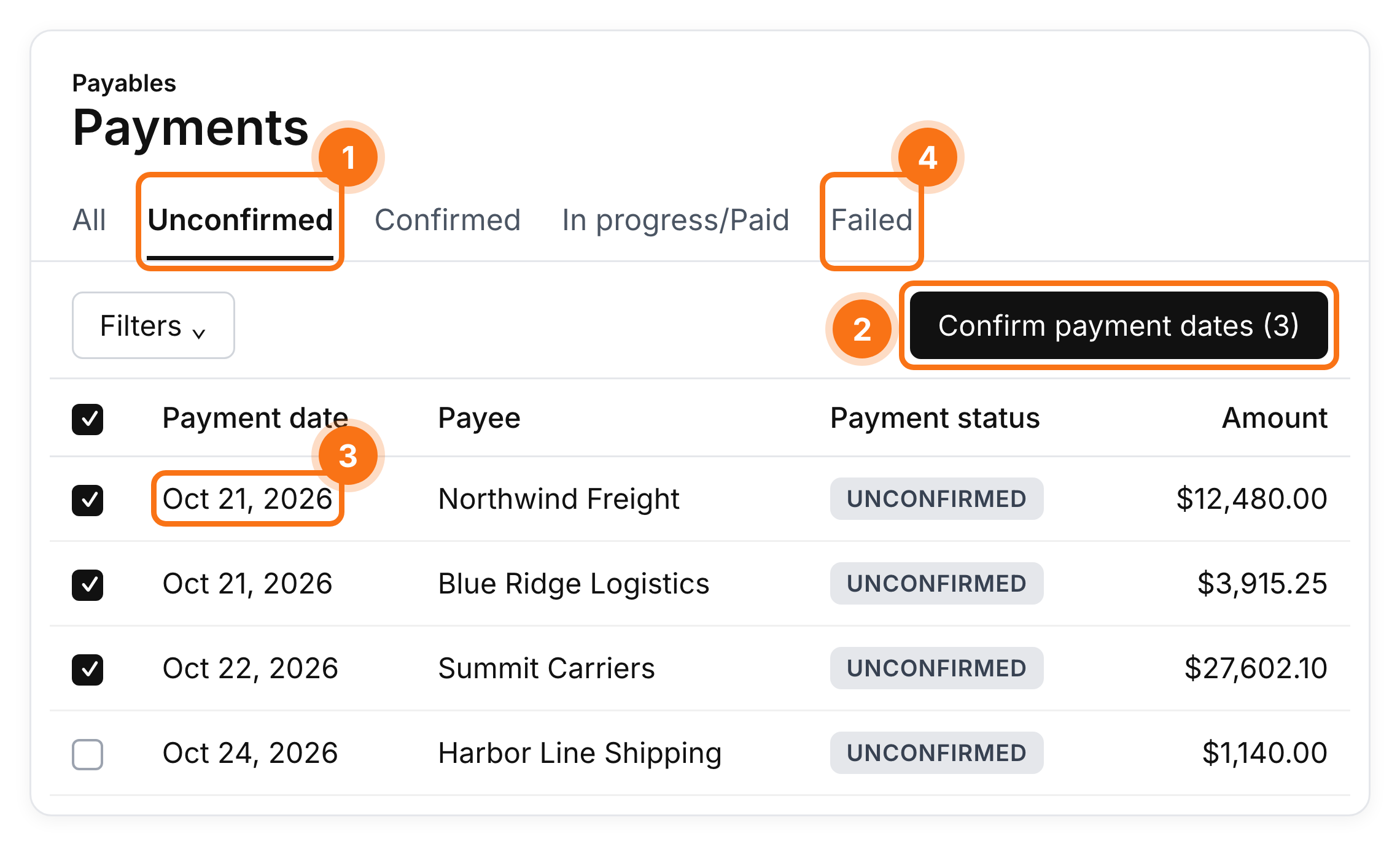
Unconfirmed lists payments waiting for you. They will not be sent until you confirm them.
Select payments and choose Confirm payment dates, or open one payment and select Confirm.
Payment date is when your account is debited and the payment starts. To change it, open the payment and select Edit payment date.
Failed lists payments that didn't complete. Open one to see the reason and select Retry payment.
Status | What it means |
|---|---|
Unconfirmed | Confirm the release date to schedule the payment. |
Confirmed | Scheduled for payment. |
In progress | Payment initiated. |
Paid | Paid successfully. |
Failed | The payment didn't complete. Open it to see why. |
Offline payments
With offline payments (also called client-managed payments), you pay your carriers yourself. Loop still audits your invoices, and every review you complete, approval or rejection, is grouped into a payment run (rejections at $0). After a run closes, Loop delivers a payment run file to your team, by email or SFTP or for download, and you pay from your own AP system or bank.
Loop doesn't move or hold any money for offline runs, and it can't see when you pay.
Send your carriers remittance from your own system. The exception is FedEx, if Loop is set up to send FedEx remittance for you.
The Payments tab on an invoice shows the run it was included in, not the date you paid the carrier.
FAQ: understanding your payment model
What's the difference between custodial, direct disbursement and offline?
Custodial: you send one funding payment per run to a custodial account, and Loop applies your funds and pays your carriers from it. Direct disbursement: Loop debits your account for each payment and pays the carrier directly. Offline: you pay carriers yourself using the payment run file Loop sends you. See the comparison table above.
Does Loop hold our money?
Only with custodial payments, and only for your carrier payments. Your funds go to a custodial account that Loop manages for carrier payments, separate from Loop's operating accounts, and Loop pays them out to the carriers on the run. With direct disbursement and offline, your money stays in your account until a carrier is paid.
Can Loop debit our account without our approval?
With direct disbursement, Loop debits your account only for payments you have confirmed, under the debit authorization you set up with Loop's payment partner. With custodial and offline payments, Loop never debits your account unless you have specifically set up pull funding with Loop.
Which model gets carriers paid fastest?
Direct disbursement, because there is no funding step: the carrier is paid from your account on the payment date. With custodial payments, carriers are paid after your funds arrive and are applied, so the Funding Due Date and how you send funds both affect timing. Ask your Loop team for the timeline for your account.
Which currencies are supported?
Custodial payments support USD, CAD, EUR, GBP and MXN, with a separate run and funding request for each currency. Fund each run in its own currency; Loop doesn't convert currency, and any FX fees are yours. Direct disbursement is USD to US bank accounts only. With offline payments, you pay in whatever currency your bank supports.
We have several legal entities. How does that work?
Each paying entity and currency gets its own payment run and funding request. Fund each one separately and quote its own run number.
Can we change models, or use more than one?
Models are set per paying entity, currency and group of carriers, so you can mix them. Whether a change makes sense depends on your carriers, currencies, payment terms and bank. Talk to your Loop team.
FAQ: custodial payments
What is a payment run, and how often is there one?
A payment run is the batch of invoices whose review was completed: approvals, including partial approvals, and rejections. Rejections appear at $0 and nothing is paid for them. Most clients have a weekly run on a set day; your schedule is shown under Run period in Settings → Payments. Depending on your setup, a completed review goes on the next run, or on the latest run that still pays the invoice by its due date.
When do I need to complete an invoice's review so it's paid on time?
By its Approval deadline, shown as a column on your invoices. Reviews completed after that go on a later run, so the invoice may be paid late.
When do I get the funding request, and who sends it?
Loop emails it to your AP contacts after the run closes and is confirmed, on the schedule agreed during setup (usually the same day or the next morning). You can also open it from the run's activity in Payment Runs (Run closed, funding request sent → funding request). To change the recipients, the timing or how long you have to fund, contact your Loop team.
How much do I send, and by when?
The exact Total Amount Due on the funding request, in the run's currency, by the Funding Due Date. Send it as one payment, ask your bank to charge any wire fees to you as the sender, and quote the run number.
Where do I send the funds?
To the custodial account in the Remittance Instructions on your funding request and on your funding instruction letter, the official bank letter your Loop team sent when you set up custodial payments. Set the account holder up as a vendor in your ERP. Loop will never change bank instructions by email alone. If you receive new instructions, verify them by phone with your Loop team using a number you already have, before you send funds.
Why does the funding request say Loop but the bank letter shows a different company?
The custodial account is held in the name of Data2Logistics, so the official bank letter comes from that company. Loop manages the account, sends the funding request and applies your funds. Both documents describe the same account.
What if I send too little, too much, or late?
Too little: a run is only paid out once it is fully funded, so every carrier on it waits until the balance arrives. Contact Loop right away. Late: every carrier on the run is paid later. Too much: contact Loop and we will tell you how the extra will be applied or returned. If you need to hold an invoice back, tell Loop before the run closes rather than short-paying.
What does Outstanding Funding mean?
The amount of the run that hasn't been covered by applied funds yet. It drops to $0.00 when the run is fully funded. Funds can show as applied a business day or so after they reach the account.
Can I add or remove an invoice after the run closes?
No. Once a run is In progress, its invoices are locked. Reviews completed later go on the next run. If something on a closed run must not be paid, contact Loop immediately.
When will carriers be paid after we fund?
When your funds arrive, Loop applies them to the run and schedules each carrier's payment. The Value Date on the run shows the date each carrier should receive the funds. Timing depends on how you fund (wire is faster than ACH), how each carrier is paid (electronic payments are faster than checks), and bank holidays, when no money moves. Ask your Loop team for the timeline for your account.
Can custodial payments meet short carrier payment terms?
Weekly runs funded by ACH work well for terms of about three weeks or longer. For shorter terms, ask your Loop team about wire funding or more frequent runs.
Why does an invoice's Payments tab show a date before the carrier was paid?
On an invoice, Payment date is the run date. The date the carrier receives the money is the Value Date on the payment run.
Who sets up our carriers for payment?
Loop does. We collect and verify each carrier's banking details, and we may ask you to confirm a new carrier or bank change before the first payment. Setup time depends mostly on how quickly the carrier returns its banking details and a sample invoice. See How to set up a carrier for payments on Loop.
FAQ: direct disbursement payments
What do we need to set up before the first payment?
Authorize debits from Loop's payment partner with your bank. If your bank uses Positive Pay or ACH debit blocks, add the company ID your Loop team gives you; otherwise your bank will reject the debits and the payments will fail.
How is the payment date set?
Loop calculates it from the carrier's payment terms and the anchor date in its billing profile. For example, Net 30 with an invoice-received anchor date means the payment is due 30 days after Loop receives the invoice. Review the date before you confirm.
How do I confirm payments?
Go to Payables → Payments and open the Unconfirmed tab. Select the payments and choose Confirm payment dates, or open a payment and select Confirm. The first payment to a new payee asks you to confirm again.
What happens if we don't confirm a payment?
It is not sent. Unconfirmed payments stay on the Unconfirmed tab until you confirm them.
When is our account debited?
On the confirmed payment date, one debit per payment. If a payment is confirmed after the day's processing cutoff, or for a date in the past, it starts on the next processing day. The payment shows the resulting date.
What if our account doesn't have enough funds?
Your bank returns the debit, usually within two business days, and the payment shows Failed. The carrier isn't paid. Add funds, then open the payment and select Retry payment.
How do we change the bank account Loop debits?
Contact your Loop team with the new account details. Loop verifies the new account, which can include a small test deposit for you to confirm, and keeps debiting the old account until the new one is verified.
How do I change a payment date?
Open the payment and select Edit payment date. If a payment covers several invoices and only one needs a new date, open that invoice's Payments tab and edit its payment there.
How do I cancel a confirmed payment?
If it hasn't started, open the payment and select Cancel payment, or select Reopen review on the invoice to put it back in review. Once a payment is In progress, contact Loop immediately; stopping it isn't guaranteed.
What is the cutoff to have a payment sent today?
It depends on your account's payment partner and payment method. Check the date shown on the payment, or ask your Loop team for your cutoff.
FAQ: offline payments
How do I get my payment run file?
Loop delivers it after each run closes, by email or SFTP or for download, in the format agreed during setup. By default it arrives shortly after midnight following the run's close. To change recipients, format, timing or delivery, contact your Loop team.
Do I need to tell Loop when we've paid?
No. Loop doesn't track offline payments. If a carrier asks about a payment, check your own AP system.
Will Loop send remittance to our carriers?
No, send remittance from your own system. The exception is FedEx, if Loop is set up to send FedEx remittance for you.
Paying Loop's fees
Loop's own fees are separate from your carrier payments. They are invoiced by Loop and paid to Loop, never through a funding request.
Who invoices Loop's fees?
Loop Payments, Inc. invoices your implementation fee and platform fees, as set out in your agreement. Fee invoices never appear on a funding request.
Do we need to set Loop up as a vendor?
Yes. Every client sets up Loop Payments, Inc. as a vendor for fees. Email vendors@loop.com: our finance team will complete your vendor forms or portal registration and send Loop's W9 and bank details. With custodial payments, the account you fund belongs to a different company, so it needs its own vendor record too.
Which W9 do we use?
Loop Payments, Inc.'s W9 for Loop's fees. For the custodial account, use the account holder's documents: the funding instruction letter (the official bank letter) and, if you need it, the account holder's W9. Your Loop team provides both.
How do we pay a fee invoice?
By ACH or wire to the account shown on the invoice, quoting the invoice number. Bank fees for sending the payment are yours.
Can we add Loop's fees to our carrier funding payment?
Please don't. Carrier funds are held in custody, apart from Loop's own accounts, so a combined payment has to be split by hand and can delay your run. If your system can only pay one bank account for Loop, talk to your Loop team before your first fee payment.
Do payments themselves cost extra?
Any payment fees are set out in your agreement. Loop doesn't charge for holding funds in the custodial account. Your bank's wire, ACH and FX fees are yours.
For SIQC clients on Loop
If you came to Loop from StrategIQ Commerce (SIQC), SIQC still pays the carriers it pays for you. Loop now audits and approves your invoices, builds your payment runs (what you knew as weekly cutoffs) and shows you their status.
What changes for us now that payments run on Loop?
Invoices are audited and approved in Loop, and Loop builds a payment run on your schedule from your completed invoice reviews. You can see each run, its carriers and its status in Payment Runs. For carriers SIQC pays on your behalf, SIQC still receives your funds and pays the carrier. Carriers you paid yourself before are usually on an offline run, and you keep paying them yourself.
Do we still send funds to SIQC?
For carriers SIQC pays on your behalf, yes. Follow the funding instructions for your account. If anything in your instructions changes, or you're unsure where to send funds, contact your Loop team before you send.
We pay FedEx by credit card (PCARD). Does that change?
No money moves through Loop or SIQC for card payments. FedEx receives the payment file for each run and charges the card you keep on file with FedEx.
Will FedEx still get remittance?
Yes. FedEx receives an electronic remittance file for its payments. Your Loop team confirms the setup for your FedEx payment method.
Why doesn't our run show Fully funded?
For runs paid through SIQC, Loop doesn't receive a funding update, so the funding status may not change to Fully funded. Once SIQC confirms the payments, the run shows each carrier's Value Date and Payment ID and moves to Completed.
Who do we contact now: SIQC or Loop?
Contact your Loop team first for invoices, payment runs and payment status. We will coordinate with SIQC when needed.
For D2L clients on Loop
If you came to Loop from Data2Logistics (D2L), your custodial funding still goes to a Data2Logistics account. Loop now builds your runs, sends your funding requests (what you knew as the Call for Funds), applies your funds, pays your carriers by ACH or check, and shows you each payment.
What changes for us now that payments run on Loop?
Invoices are audited and approved in Loop. Each run, its funding status and every carrier payment are visible in Payment Runs. Funding requests now come from Loop. If you weren't a custodial client with D2L and paid carriers yourself, you are on offline payments and receive a payment run file from Loop instead.
Is our funding account changing?
For USD, yes: at cutover, USD funding moves to a Data2Logistics account set up for Loop, and your Loop team sends you a new funding instruction letter. Your Loop team will tell you whether anything still goes to your previous account, for example for work D2L was finishing at cutover, and what to update in your vendor setup. Always verify a bank change by phone with your Loop team before you send funds.
How do carriers receive payment?
Each carrier is paid by ACH or check, as set up for that carrier. Every payment has a check number, including electronic payments, and ACH payments also carry a trace number. Carriers can use either to find the deposit.
Why did one check or deposit cover several invoices or runs?
Several payments to the same carrier can be combined into one disbursement. Loop still shows each run's payment and sends the carrier a remittance listing the invoices it covers.
Where do I see what was paid and when?
Open the run in Payment Runs. The Payments table shows each carrier's Instruction Date, Value Date and Payment ID. Select View invoices to see the invoices on the run.
How should we pay fees now?
Loop's fees come from Loop Payments, Inc. and are paid to Loop, separately from your carrier funding. See Paying Loop's fees above. If you're not sure which account an invoice should be paid to, ask your Loop team before you pay.
Who do we contact now: D2L or Loop?
Contact your Loop team.
FAQ: carriers, factors and QuickPay
How do I see a carrier's payment setup status?
In Organizations, review the Account status column, or open the organization and go to Billing & payments. Statuses include:
Missing data: required payment information isn't available and no invite has been completed.
Invite sent: an onboarding invite was sent but not completed.
Invite expired: the invite is no longer valid and needs to be resent.
Invite error: the invite couldn't be delivered.
Onboarded: bank details are connected and the carrier can be paid.
Active: a payment has completed using the account on file.
Error: payment or account verification needs attention.
Offline: payments to this carrier are handled outside Loop.
For custodial payments, carriers with non-US or non-USD bank accounts are set up by Loop directly and may not show as Onboarded. Ask your Loop team if you need to confirm one.
How do I add a carrier or send a bank account invite?
Open the organization, go to Billing & payments, and select Send bank account invite. Loop verifies every new account before paying it. See How to set up a carrier for payments on Loop.
How do I update a carrier's bank details?
Direct disbursement: an administrator can open the organization's Billing & payments, select Remove bank account, then send a new bank account invite. Custodial: contact your Loop team, or ask the carrier to contact Loop; every change goes through Loop's full verification again. Loop never accepts bank changes by email alone.
Can carriers check their own payment status?
Yes. In Loop Connect, carriers see each payment with an Estimated arrival date, which updates once the payment is scheduled and shows Delayed if it is running late.
How do I see whether a carrier uses a factor?
In Organizations, review the Assigned factor column, or apply the Has assigned factor filter to see them all.
How do I assign or release a factor?
Open the carrier's organization, go to Billing & payments, and select Assign factor (with the notice of assignment) or Release factor (with the letter of release). Moving existing invoices to a new factor isn't self-service; contact Loop.
How do I stop paying a carrier?
What is QuickPay?
QuickPay pays an enrolled carrier early in exchange for a discount. It is available with direct disbursement in USD. QuickPay terms appear in the carrier's payment settings, and you can filter Organizations by QuickPay enrollment. To change an enrollment, contact your Loop team. See QuickPay.
FAQ: remittance and payment questions
Will carriers receive remittance?
For custodial and direct disbursement payments, yes. Loop emails each carrier's remittance contacts when the payment is made, and the run's activity shows Remittance email sent. FedEx receives an electronic remittance file instead. For offline payments, you send remittance.
How do I change where a carrier's remittance goes?
Open the organization, go to Billing & payments, and select Edit remittance emails. For direct disbursement, you can also open a payment and select Re-send to send its remittance again.
A carrier says it wasn't paid. How do I check?
Custodial: open the run in Payment Runs and check the carrier's Value Date and Payment ID. If there's no Value Date yet, check the run's funding status. Direct disbursement: find the payment in Payables → Payments and check its status. Share the Payment ID with the carrier and point it to Loop Connect, then contact Loop if it still can't find the payment.
How do I see which invoices a payment covered?
Custodial: open the run and select View invoices. Direct disbursement: open the payment and review the invoices listed for the payee.
Can I see where a payment was sent?
The payment details show the receiving account by its last four digits only. Full bank details are never shown and can't be exported.
How do I see and fix failed payments?
Direct disbursement: open Payables → Payments → Failed, open the payment to see the reason, fix the cause (for example, by updating the carrier's bank details), then select Retry payment. Custodial: Loop handles failed carrier payments and will contact you if anything is needed. See Payment Failure Codes and Payment Issue Discoverability.
A payment went to the wrong payee. What now?
Contact Loop immediately. Once funds have settled, Loop can't pull them back from the payee's bank account, so recovery may need to happen directly with the payee. Don't resend payment until Loop has reviewed it.
Can I stop a payment after it has started?
Contact Loop immediately. Whether it can be stopped depends on its status and payment method, and stopping it isn't guaranteed.