Cost Allocation
Last updated: April 10, 2026
Freight cost visibility by GL code and cost center
Filters: Use Report Controls in the top right to filter by approval date, GL code, and cost center.
What It Is
Cost Allocation gives your finance team a clean view of how freight spend is distributed across your GL codes and cost centers — so you can accurately allocate logistics costs to the right departments and business units without manual spreadsheet work.
Who should use this: Finance and accounting teams allocating freight costs, department heads who want visibility into their freight spend, controllers tracking GL code usage.
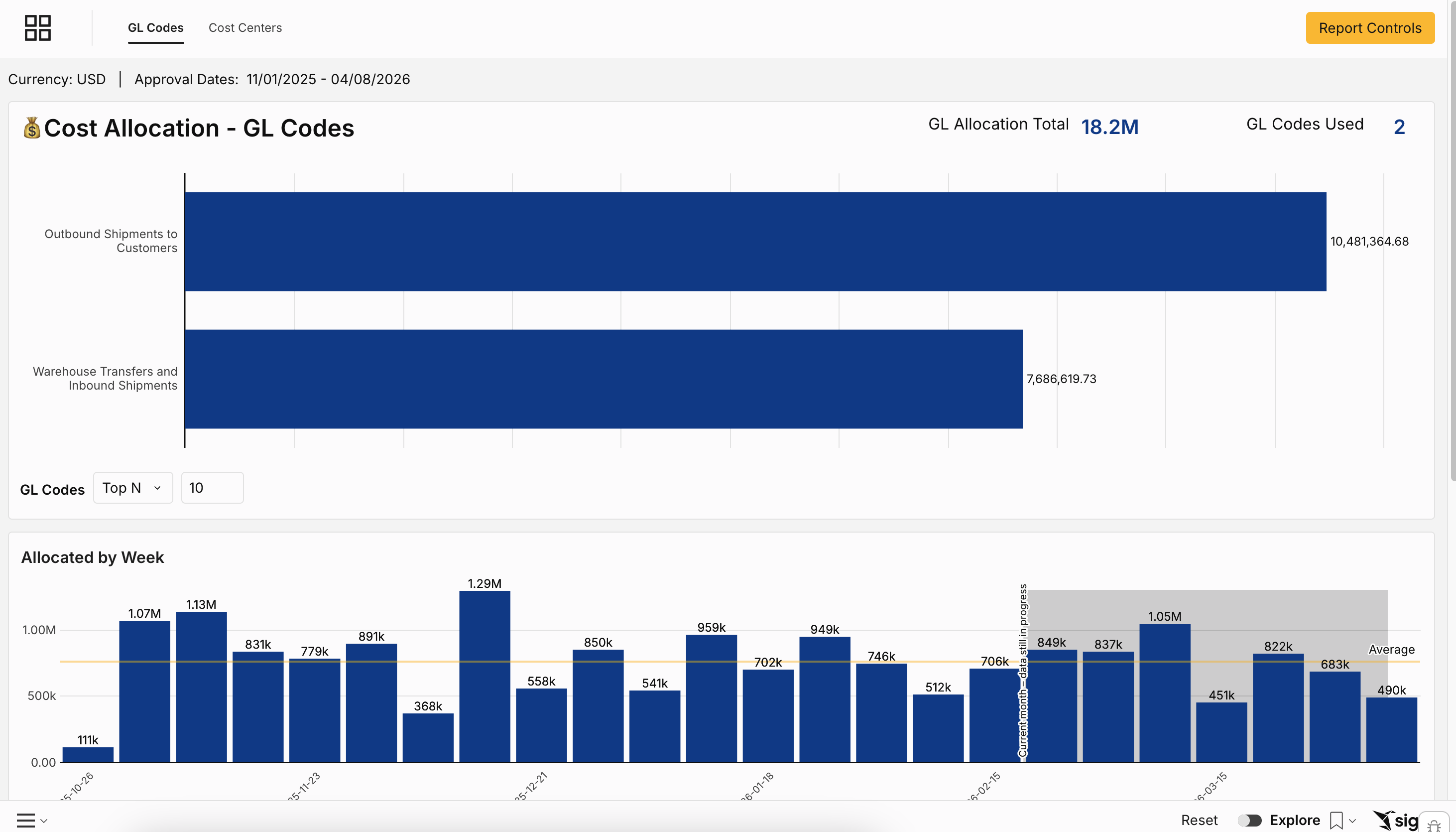
GL Codes Tab
GL Code Summary
Shows your total allocated freight spend and how it distributes across each GL code — giving you an immediate view of which codes are carrying the most freight cost.
How to use it: If a GL code has an unusually high allocation this month, click into it to see which carriers, modes, and charge types are driving it. This is often how finance teams catch misrouted charges before they close the books.
Allocated by Week Chart
A week-by-week view of allocated spend by GL code. The yellow line represents your average weekly allocation — use this as your baseline for spotting unusual spikes or dips.
How to use it: If one week shows a dramatically higher allocation than the average, drill into the General Ledger Details table to see exactly what was allocated and when. Especially useful for month-end variance analysis.
General Ledger Details Table
The most granular view in this tab — shows shipment-level allocation detail for each GL code. Click the + icon next to any entry to expand and see exactly which shipments and charges were allocated to that code. Sort by payment amount to bring the highest-value allocations to the top.
Cost Centers Tab
Mirrors the structure of the GL Codes tab, but organized by cost center instead.
Cost Center Summary — total allocated spend by cost center
Allocated by Week — week-by-week allocation trends by cost center
Cost Center Details Table — shipment-level allocation detail with the same + icon drill-down
How to use it: At the end of each month, filter to a specific cost center and share the report directly with the relevant department lead — or schedule an automatic export to go out on the first of every month.
What to Do When Spend Is Unallocated
If you see freight spend that isn't assigned to a GL code or cost center, it means those shipments weren't tagged during the audit process. This can happen when new accounts, carriers, or charge types are added without corresponding allocation rules.
Loop flags each invoice with a Missing GL Code exception during audit. Depending on your rules, this may block the invoice from being approved by automation until a human reviews it.
Common Use Cases
Month-end cost allocation close: Open Cost Allocation → filter to the prior month's approval date → export the GL Code Details table. Every dollar of freight spend is mapped to a GL code, ready to post to the general ledger.
Identifying a GL code anomaly: The Allocated by Week chart shows one GL code spiked 3x above average in the second week of the month. Finance drills in and finds air freight shipments incorrectly tagged to the wrong GL code. They flag it to Loop for correction before the books close.
Giving department heads cost visibility: Instead of sending monthly spreadsheet emails, the finance team schedules an automatic export of the Cost Center Details filtered to each department's cost center. Each department head gets their freight cost summary on the first of the month.